
7 Best CRMs with payment processing: Tested & reviewed [2025]
A CRM with payment processing can raise revenue or increase costs when fees stack across systems. I tested dozens and found the 7 best for billing in 2025.

![7 Best CRMs with payment processing: Tested & reviewed [2025]](/content/images/size/w2000/2025/11/iStock-2161871240--1-.jpg)
After testing how CRMs with payment processing manage client data, invoicing, and billing updates, I found that some tools handle the workflow better than others. The 7 below delivered the most reliable results in 2025.
What is a CRM with payment processing?
A CRM with payment processing is a system that stores client information and also lets you send invoices, collect payments, and track transactions in the same place. It connects the CRM to a payment gateway through an API so payment activity updates automatically inside each client record.
This setup works well for service businesses, subscription teams, and SMBs that want one workflow for managing leads, client details, billing, and payment history without switching tools.
7 Best CRMs with payment processing in 2025
CRMs with payment processing approach billing in different ways, from simple invoice tools to full workflows that track every payment update. Here are the 7 top tools compared side by side:
| Tool | Payments | Starting price (billed annually) | Best for |
|---|---|---|---|
| Assembly | Native billing with Stripe | $39/month | Service businesses |
| HubSpot CRM | Stripe and QuickBooks integrations | $9/user/month | Sales-led teams |
| Keap | Native payments | $299/month for 2 users, billed monthly | Automation-heavy workflows |
| Zoho CRM | Zoho Payments and integrations | $14/user/month | Teams inside the Zoho ecosystem |
| Pipedrive | Stripe and Smart Billing integrations | $14/user/month | Simple sales pipelines |
| monday CRM | Stripe integration | $12/user/month, minimum 3 users | Custom process builders |
| Method | Native payments with QuickBooks sync | $35/month | QuickBooks-focused firms |
1. Assembly: Best for service businesses
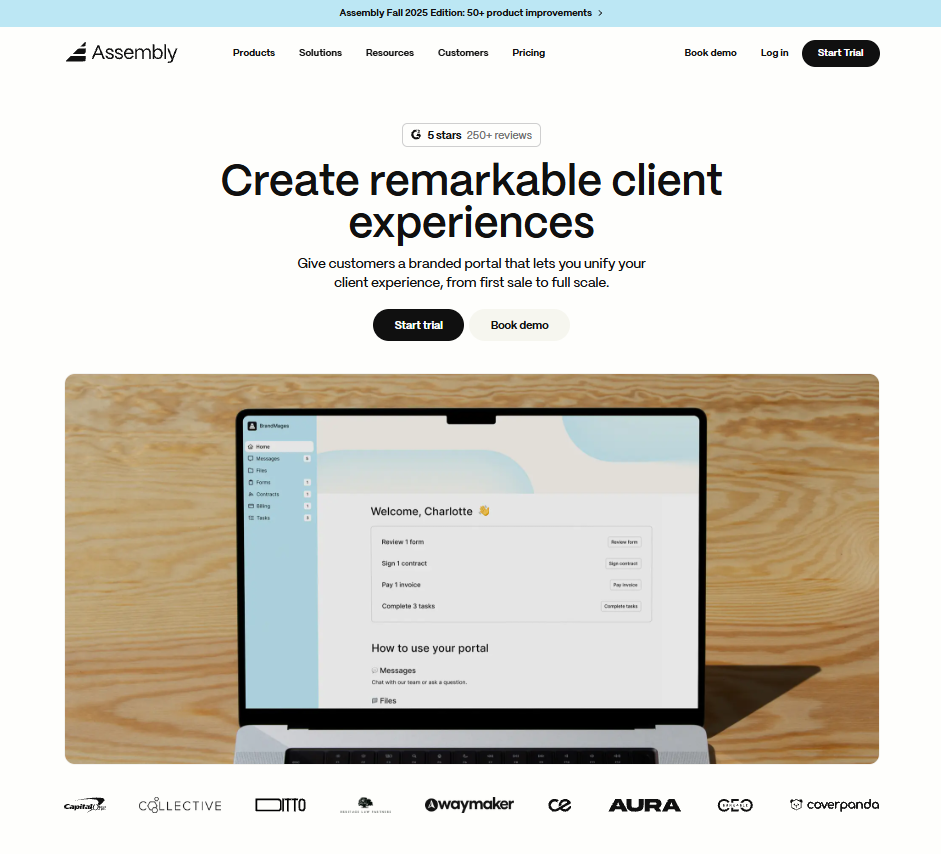
We built Assembly to work like a CRM with a connected payment processor, so billing and client work stay in one place from pre-sales through delivery.
Service businesses use it to manage invoices, subscriptions, messages, files, and payment activity inside the same client record, which creates a clearer view of each account as work moves forward.
The Billing App helps teams handle automated invoice processing for subscriptions and one-time invoices in one place.
Assembly fits teams that need a reliable workflow for client delivery, not just a quick way to store contacts or send a single invoice. It focuses on long-term client relationships and brings billing, communication, and project context into one place.
Assembly starts at $39 per month.
2. HubSpot CRM: Best for sales-led teams
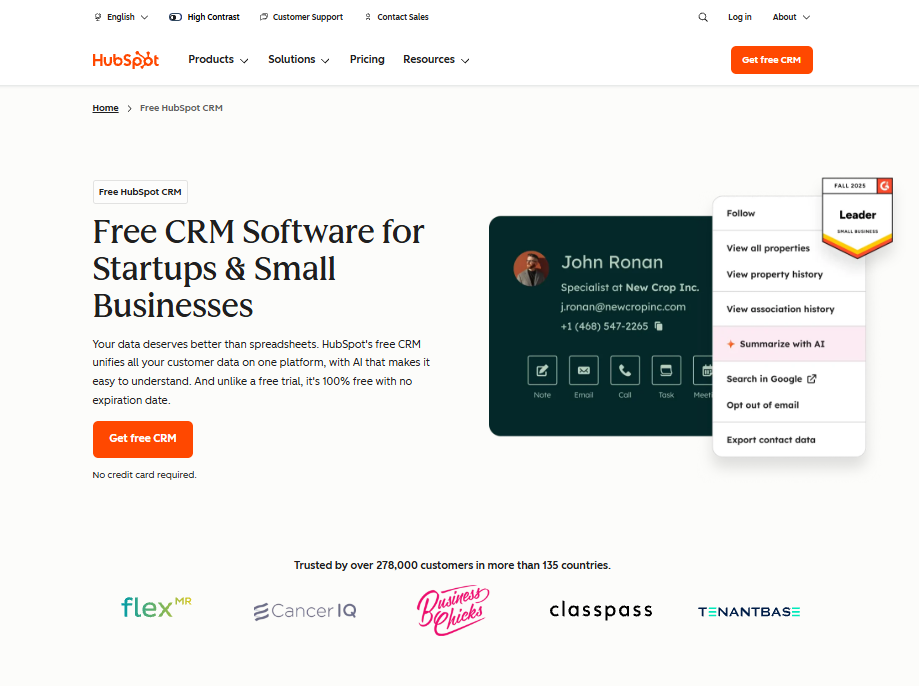
HubSpot CRM is a popular choice for sales teams that want a simple way to track contacts, deals, and activity. When I tested it with payment workflows in mind, I reviewed how well it keeps deals, contacts, and billing activity connected.
The platform doesn’t include built-in payment processing, but you can add payments through HubSpot Payments, the Stripe integration, or a QuickBooks connection. This setup works best for teams already running their sales pipeline in HubSpot and want billing close to their deal stages.
What stood out is how easy it is to manage deals and communication in one place. The limitation is that payment activity sits outside the core CRM, so the billing workflow depends on add-ons or the broader HubSpot ecosystem.
HubSpot CRM starts at $9 per user per month.
3. Keap: Best for automation-heavy workflows
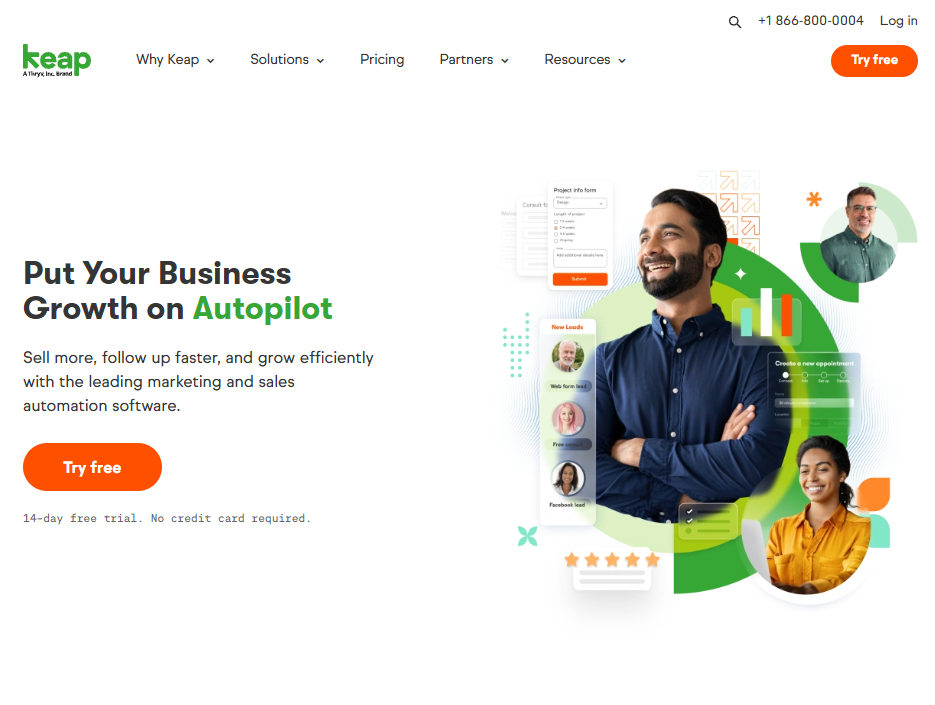
I tested Keap to see how well it handles CRM tasks, invoicing, and payments inside one system. It supports recurring charges, stored payment methods, and automated follow-ups without extra apps, which makes it appealing for teams that rely on repeat billing or structured workflows.
Keap’s strength is its automation engine. You can map out sequences that send invoices, reminders, or status updates with little manual work. What I didn’t like was the setup time. Keap asks for more configuration upfront, and the interface can be heavy if you only need simple billing.
Keap starts at $299 per month for 2 users, billed monthly.
4. Zoho CRM: Best for teams inside the Zoho ecosystem
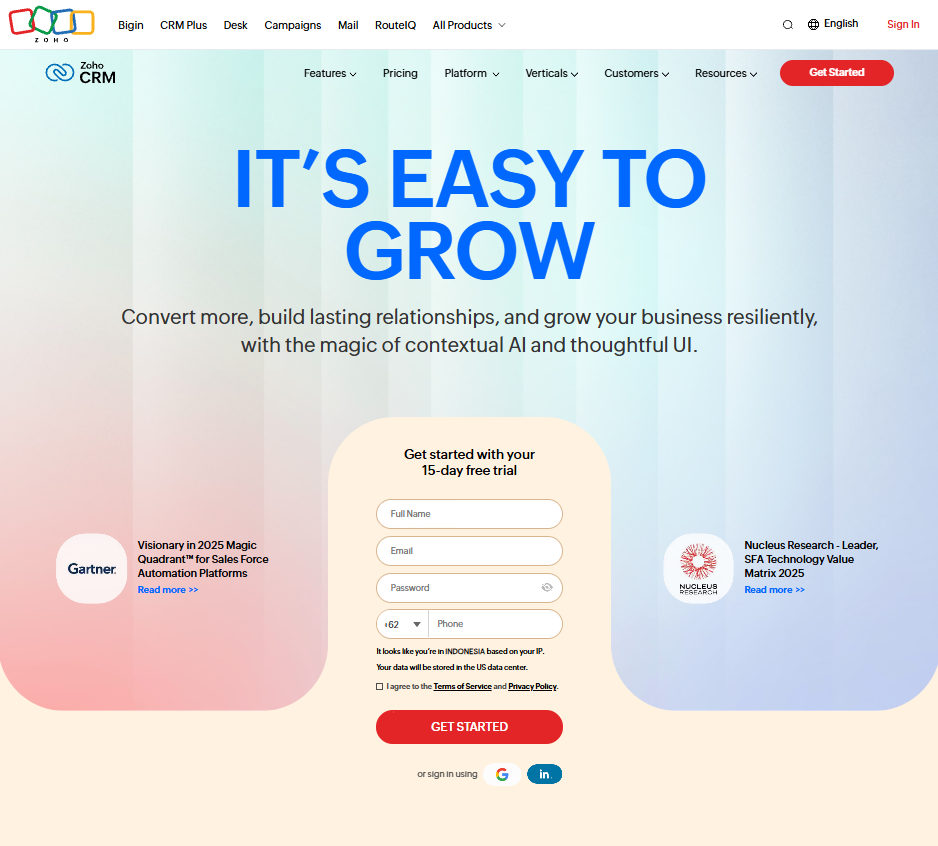
During testing, I reviewed how Zoho CRM connects payment activity to the rest of the Zoho suite. Payments can run through Zoho Payments or connected gateways, and the CRM links smoothly with Zoho Books, Zoho Mail, and other apps. This setup works best for teams already using Zoho tools that want everything under one login.
What stood out is how well the apps connect once they’re set up. However, payment features sit across several Zoho products, so the workflow takes more configuration. It’s a stronger fit for teams that want everything under one system.
Zoho CRM starts at $14 per user per month.
5. Pipedrive: Best for simple sales pipelines
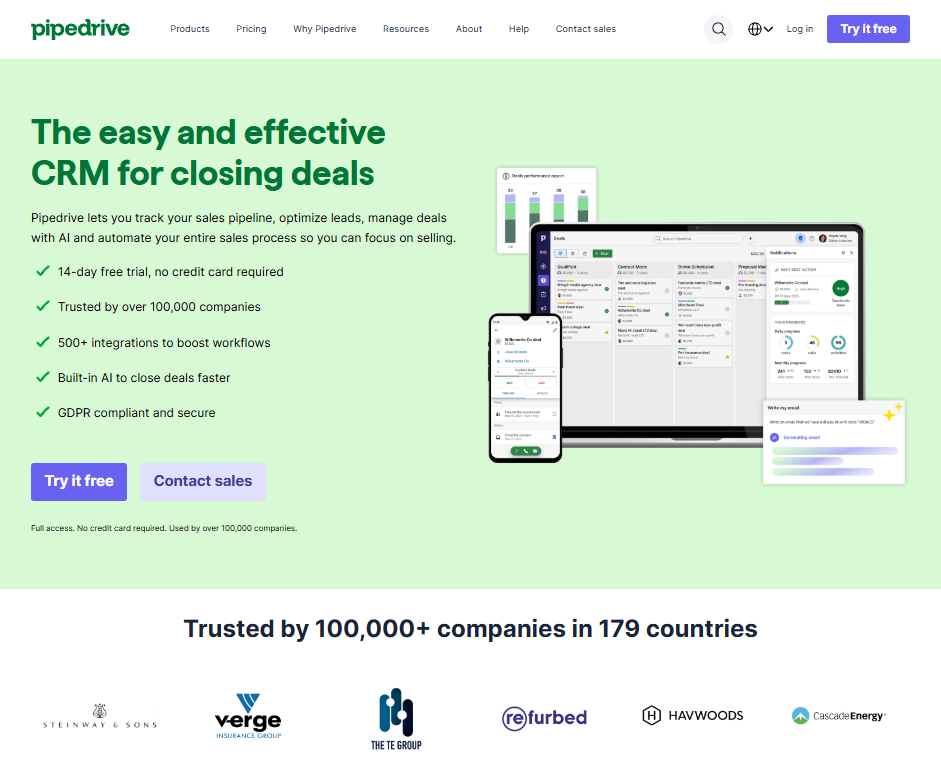
I tried Pipedrive to see how it handles sales activity, payments, and basic billing tasks in one place. It’s one of the easier CRMs to set up, which is why many small sales teams start here. Payments run through Stripe or Smart Billing, and the setup is quick if you only need simple invoicing.
The pipeline view is what I appreciated most. It lays out each stage clearly, which helps teams focus on moving deals forward. The billing side feels separate, since payments sit outside the main workflow. You may still need other tools if you want everything in one place.
Pipedrive starts at $14 per user per month when billed annually.
6. monday CRM: Best for custom process builders
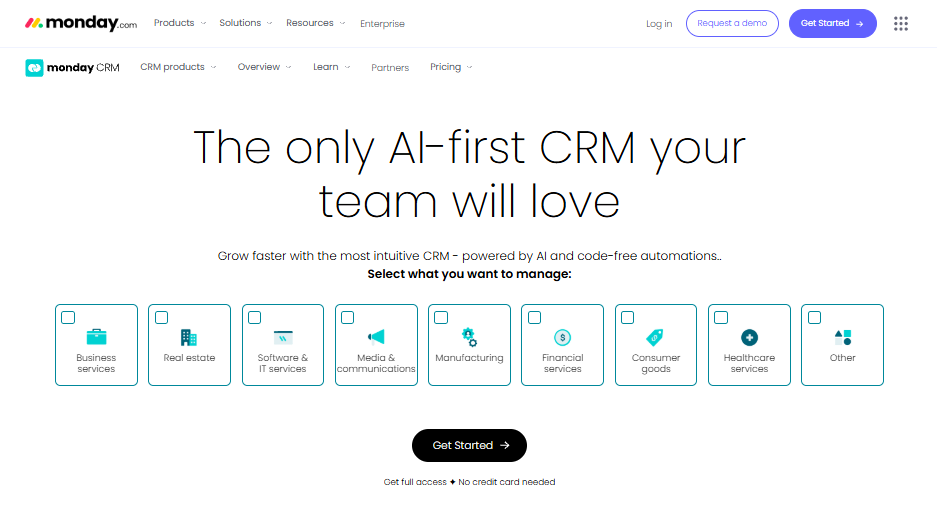
I used monday CRM to see how it handles sales stages, client notes, tasks, and billing steps inside its board-based layout. It connects to Stripe, and you can build automation rules that move deals forward or trigger invoice actions based on activity in the board. This setup works well for teams that want a system they can shape around their own process.
I liked how much control you have when building a workflow, but setup takes more time because monday CRM asks for more configuration than simpler tools. It works well for teams that enjoy customizing their workspace and want a CRM that fits their process.
monday CRM starts at $12 per user per month with a minimum of three users.
7. Method: Best for QuickBooks-focused firms
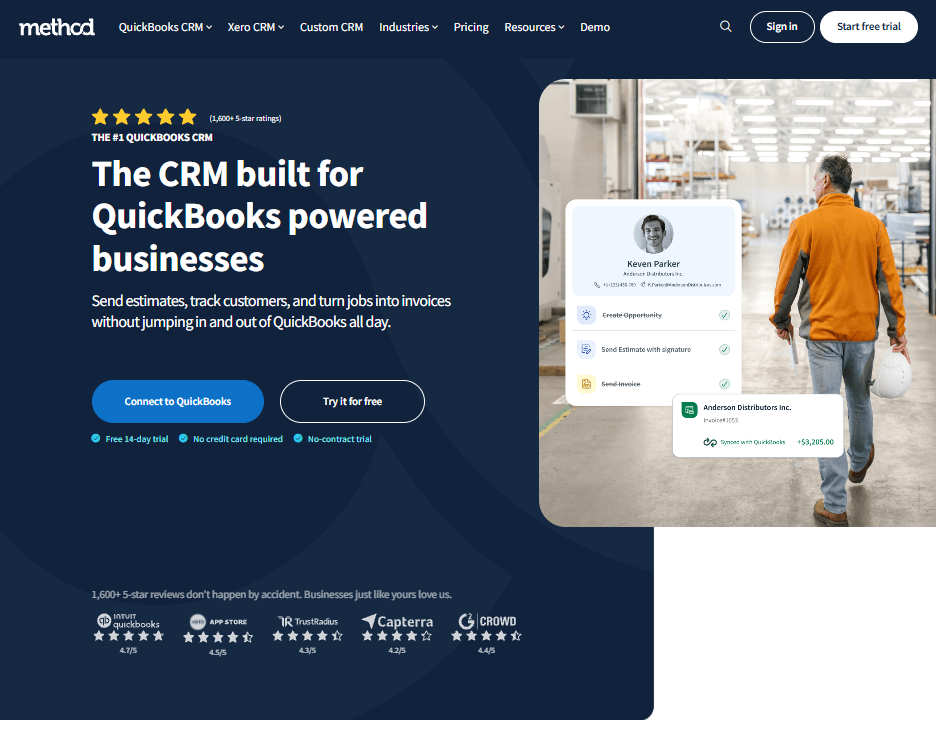
I tested how Method handles payments and client activity through its QuickBooks sync. The connection keeps invoicing and client records aligned with your books, and the platform supports custom forms or workflows when needed.
Its focus on QuickBooks can be a limit. I would say that Method fits teams that depend on QuickBooks every day, but it may be more than you need if your billing workflow lives elsewhere.
Method starts at $35 per month.
How to choose the right CRM-payment combo
Choosing a CRM with payment processing starts with your billing flow and the volume you expect to handle. Here are the checks to use when comparing systems:
- Transaction volume: High volume makes small fees matter, so compare the CRM’s pricing with the processor’s rates to see how the total scales.
- Recurring billing vs. one-time payments: Some platforms support subscriptions in the core product, while others charge extra or rely on add-ons for renewals.
- Payment methods: Look for support for credit cards, ACH, and international payments, and check whether the CRM updates payment activity in real time.
- Integration needs: If you depend on Stripe, PayPal, or QuickBooks, confirm that the CRM syncs cleanly without extra steps or delayed updates.
- Accounting or ERP syncs: A direct link to your accounting system helps keep invoices and payouts aligned once payments start coming in.
Many CRMs still run payments through a separate processor, even if they’re marketed as all-in-one. I’ve seen this surprise teams, since the CRM subscription and the processor’s transaction fees can add up quickly once real volume comes through.
A simple way to compare tools is to price out one month of your typical billing activity across both systems so you know the full cost before you commit.
As a product marketer, I also look at how well the CRM links each payment to the right client record. Gaps here create confusion once work begins, so I focus on real-time sync, stored payment methods, and clear payout visibility. These tend to make the biggest difference once you start scaling.
Key benefits of CRM payment integration
I’ve seen how much smoother billing becomes when payments connect directly to the CRM. These are the advantages that stand out most:
- Centralized client and payment history: Client details and payment activity stay in one workflow, so teams don’t flip between tools to understand an account.
- Faster invoicing and follow-ups: You can create invoices, track status, and send reminders without switching platforms, which cuts delays for both teams and clients.
- Less manual reconciliation: Integrated systems match payments to the right client record automatically, reducing errors that show up when billing lives in a separate tool.
- Clearer experience for clients: Clients can view invoices, update payment methods, and track charges in one place, which makes the billing process easier to follow.
Common mistakes to avoid
Picking a CRM with payment processing can feel straightforward, but I’ve seen teams run into problems that are easy to prevent with a quick review. These are the mistakes to watch for:
- Choosing based on price alone: Low entry pricing can look appealing, but some platforms add fees for subscriptions, reminders, or payment methods that change the total later.
- Ignoring gateway fees: Every processor charges its own rates, and those costs apply even when the CRM says it supports payments. Check how fees apply across card types and billing volume.
- Not syncing customer data: If payments update in one system but not the CRM, you’ll deal with mismatched records, missed follow-ups, and unclear client histories.
- Relying on too many add-ons: Stacking plugins for billing and renewals slows teams down and adds more places for data to break.
- Skipping real workflow tests: A tool can look good in a demo, but you won’t see gaps until you run a full invoice through your actual process from send to payment.
Take your client billing workflow further with Assembly
A CRM with payment processing covers the billing basics, but it rarely supports the full client workflow after the first payment. You’ll still spend time digging through records, chasing reminders, and stitching together different systems to keep projects moving. Assembly solves that gap.
Assembly is a client portal software with a CRM that supports both pre-sales work and post-sales delivery, and it works alongside your existing tools to bring everything into one place.
Here’s what you can do with Assembly:
- See the full client record: Notes, files, payments, and communication history stay linked in one place. You never have to flip between systems or lose context when switching from sales to service.
- Prep faster for meetings: The AI Assistant pulls past interactions into a clear summary so you can walk into any call knowing exactly what’s been discussed and what’s next.
- Stay ahead of clients: Highlight patterns that may show churn risk or upsell potential, making outreach more timely and relevant.
- Cut down on admin: Automate repetitive jobs like reminders, status updates, or follow-up drafts that used to take hours. The Assistant handles the busywork so your team can focus on clients.
Ready to simplify how your firm manages client work? Start your free Assembly trial today.
Frequently asked questions
What features should you prioritize in a CRM with payment processing?
You should prioritize real-time payment updates, clear invoice tracking, and support for the payment methods your clients use most. These features reduce back and forth and help you understand each account without jumping between tools. You also get a clearer picture of revenue as it comes in.
Can a CRM with payment processing replace your accounting software?
No, a CRM with payment processing can’t replace your accounting software because it doesn’t manage full bookkeeping tasks. It can send invoices, track payments, and record client activity, but you still need accounting tools for reconciliation and financial reporting. The best results come from a CRM that syncs well with the system you already use.
Who benefits most from a CRM with payment processing?
Service businesses benefit most from a CRM with payment processing because they move between client conversations, project updates, and billing every day. You get one place to handle onboarding, payment tracking, and account history without switching systems. This helps you keep work and cash flow aligned as your client base grows.