
How to create a customer portal: Step-by-step guide for 2026
Learning how to create a customer portal shouldn't require thousands of dollars. This guide covers essential features, the 6-step process, and the 5 best tools for 2026.

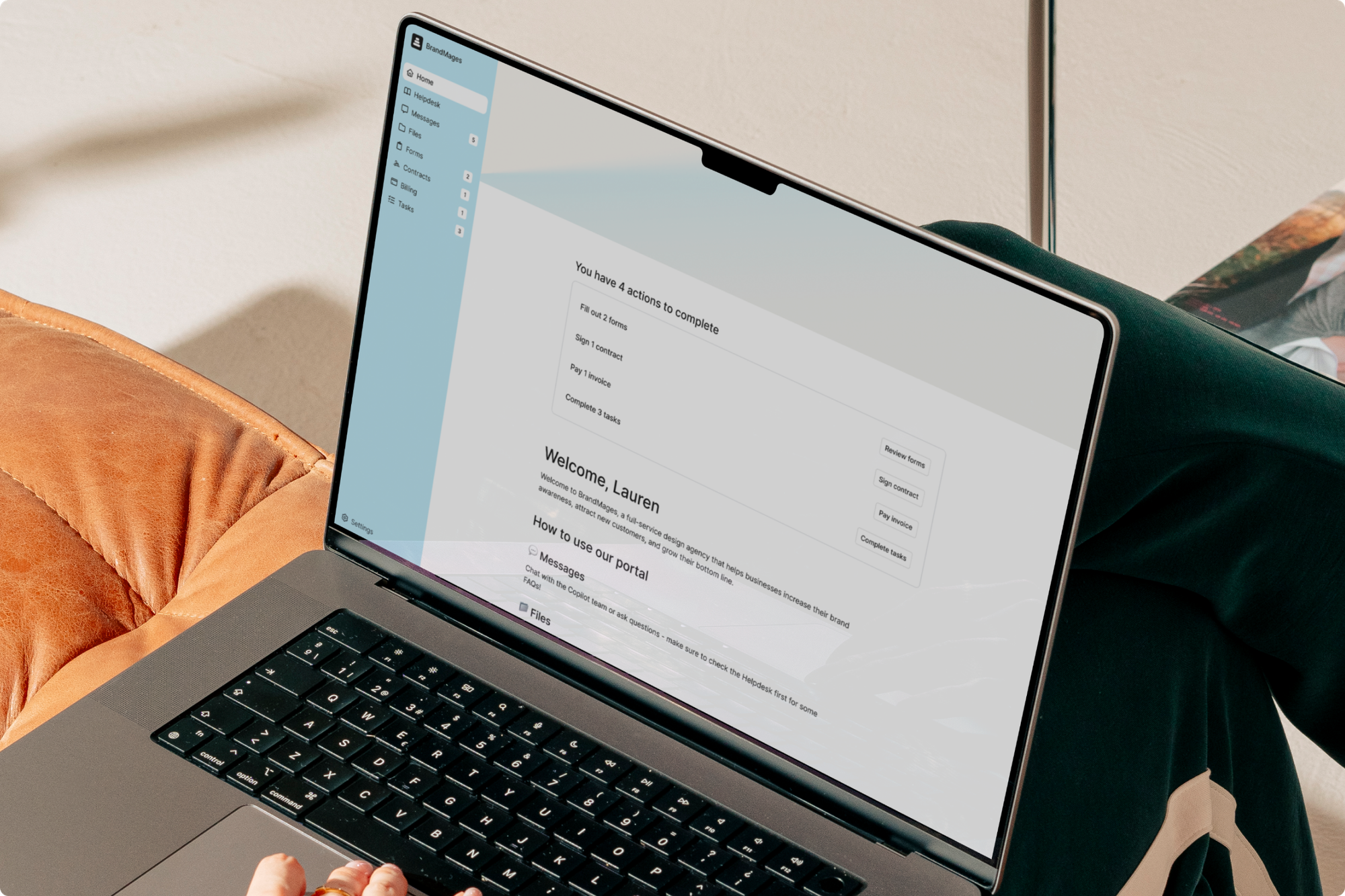
Many guides on how to create a customer portal either overcomplicate the process or skip the features that matter to clients. After researching what makes portals succeed or fail for service businesses, here's what you need to know in 2026.
What is a customer portal?
A customer portal is a secure website or app where your clients log in to access their account information, view documents, track project status, and communicate with your business. You control what each client sees. They have 24/7 access to everything they need, so they won't need to email or call you.
Customer portals work like a private dashboard for each client. When someone logs in, they see only their own files, invoices, messages, and project updates. Depending on the platform, you can upload contracts for them to sign, share reports, send invoices, and answer questions. Everything lives in one place.
Some portal software supports white-labeling. This means the portal can live on your website (like portal.yourcompany.com) and match your branding. Clients see your logo and colors instead of a generic platform. This makes your business look more professional.
Why you need a customer portal for your business: Key benefits
You need a customer portal to give clients a central place to access files, track projects, and communicate with your business. This improves efficiency for both sides while creating a more professional client experience.
Customer portals can:
- Reduce admin work: Clients ask the same questions because they don't know where to find answers. A portal gives them one place to check everything, which cuts down on email back-and-forth. You can also update information once and share it with everyone. That way, you aren't sending separate messages or files to each client.
- Make you look more professional: Email threads and shared drive links work, but they don't create a cohesive experience. A branded portal with your logo and custom domain gives clients a central hub. In my experience, it feels intentional and shows you've invested in their experience.
- Provide 24/7 secure access: Your clients don't always work 9-to-5, so they need access outside business hours. A portal stores everything in one secure place with proper access controls. Clients grab what they need on their schedule. You avoid the mess of buried email attachments and expired shared links.
- Improve information accuracy: When you rely on email, clients may end up looking at outdated info. A portal lets everyone view the latest contract, invoice, or project update. This reduces confusion from old information circulating in email threads. I’ve seen firms reduce their complaints by switching to a portal that makes sure everyone is on the same page.
- Support business growth: Managing relationships through email becomes unsustainable the more you grow. A portal grows with your business. When you add a new client, you just set up their account. There's no need to create a new system. The infrastructure stays consistent whether you have ten clients or a hundred.
- Speed up payments: When clients can view and pay invoices in one place, the process becomes simpler. 24/7 access and clear payment options can speed up the time from sending an invoice to getting paid.
- Provide client engagement insights: Some customer portals include analytics that show which clients actively use your services and which haven't logged in recently. These insights can help you identify clients who might need extra support or who may be at risk of leaving. You can reach out proactively rather than waiting for problems to surface.
How to create a customer portal in 6 steps
Creating a customer portal doesn't need to be complicated. Here's what matters when you're setting one up:
Step 1: Define your goals and requirements
Before you touch any platform, write down what's actually broken. Are clients emailing you constantly for project updates? Do you spend hours resending files? Are invoices getting lost in email threads?
List the specific problems your portal needs to solve. I can't stress this enough; vague goals lead to choosing the wrong platform.
Next, map out who's using this thing. Will some clients need billing access while others only see project files? Do different client types need different permission levels? When you understand your users upfront, you pick the right features instead of guessing later.
I always recommend splitting requirements into must-haves and nice-to-haves. You might need secure file sharing and invoicing immediately, but project tracking can wait. This keeps you from drowning in feature comparisons.
Step 2: Choose the right customer portal platform
Match the platform to your technical comfort level. If you don't have developers on staff, skip anything requiring code. No-code client portal platforms like Assembly let you launch without technical skills, and in my honest opinion, that's what most service businesses need.
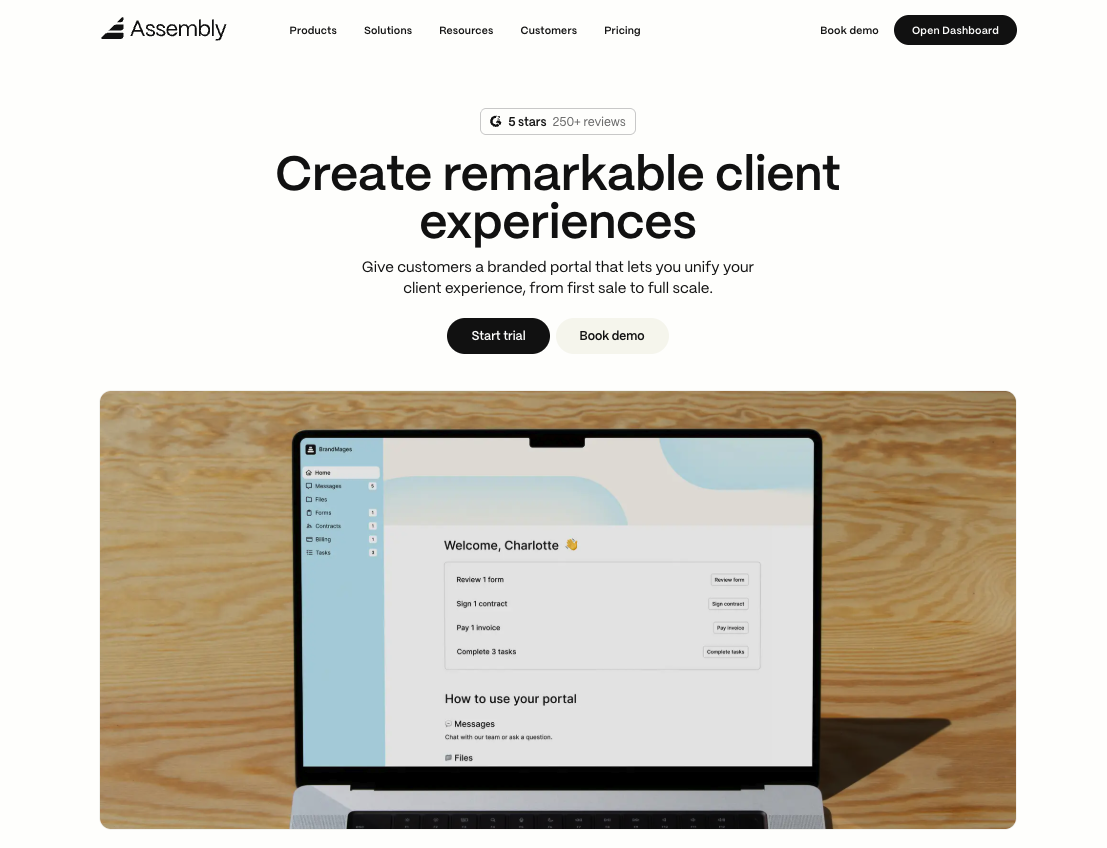
Evaluate based on what you actually need, whether that’s security, file management, communication tools, or billing capabilities. I've seen too many businesses pick platforms based on flashy features they'll never use.
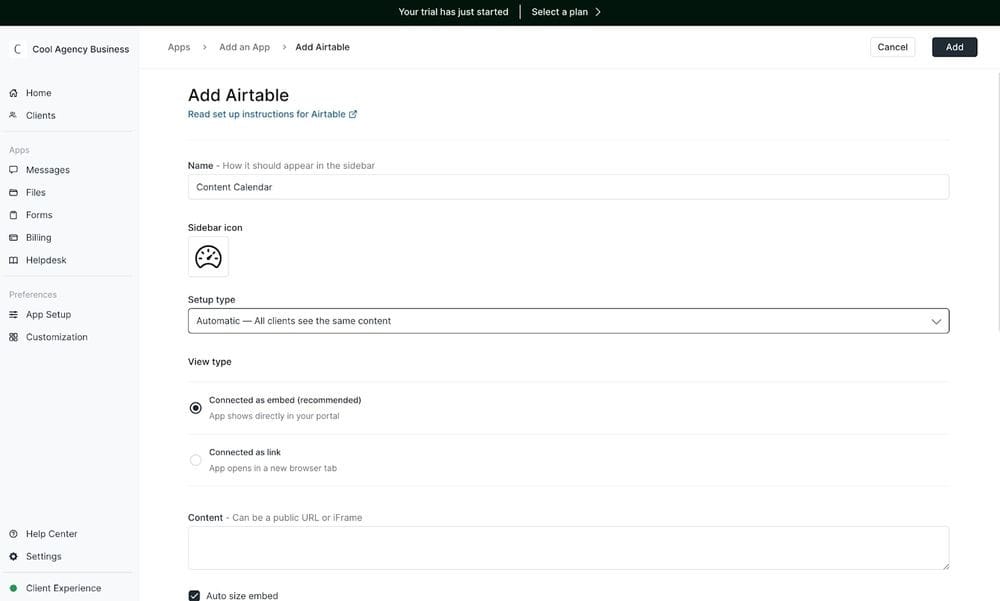
Here’s a tip: Check integration capabilities before you commit.
If you're using QuickBooks, Google Workspace, and a CRM, your portal should connect with those systems. No integrations means manual data entry, which defeats the whole point of centralizing everything.
Pricing structure matters more than the base price. Some platforms charge per internal user, others per client or contact, and some use flat rates. Calculate your costs at 50 clients, then at 200. A cheap platform that becomes expensive as you scale means migrating later, and trust me, migrations are awful.
Step 3: Set up branding and customization
Customize your portal to match your brand if the platform supports white-labeling. Upload your logo, set your brand colors, and choose fonts that align with your website. I’ve found this creates a cohesive experience that feels like an extension of your business, not some generic third-party tool.
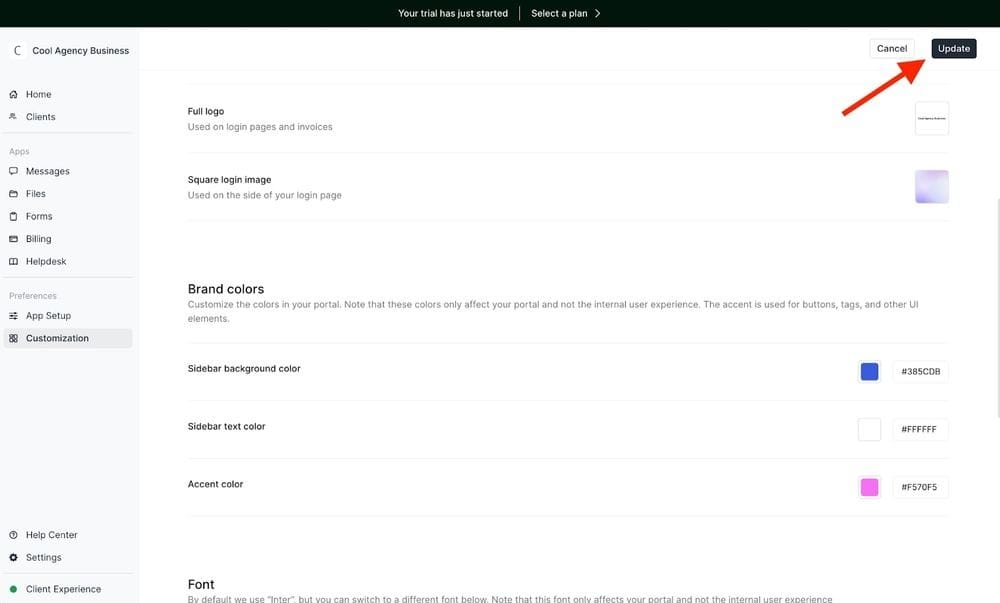
Set up a custom domain if your platform allows it. Instead of clients logging into genericportal.com/yourcompany, they go to portal.yourcompany.com. I can't overstate how much this matters for credibility. It's a small detail that makes your business look significantly more professional.
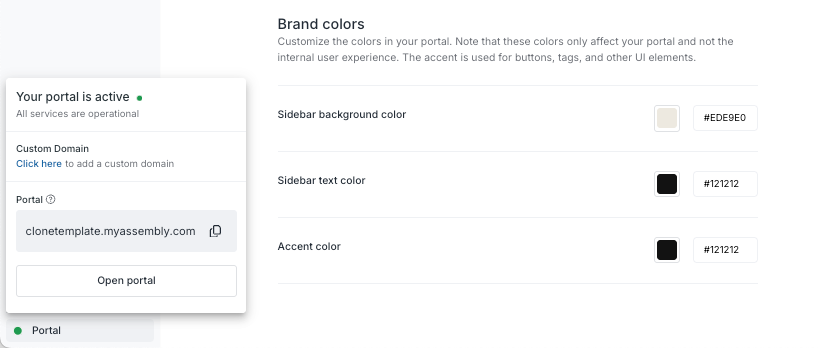
Customize your login page with a welcome message and any important information clients should see when they first access the portal. Keep it brief and focus on what clients need to know to get started. Nobody reads paragraphs on a login screen.
Step 4: Configure core features and integrations
Set up your file structure before inviting clients. Create folders that match how you work so you're not reorganizing later when clients are already inside the portal.
Configure your billing settings if you invoice through the portal. Link your payment processor, create invoice templates with your branding, then test the payment flow before going live.
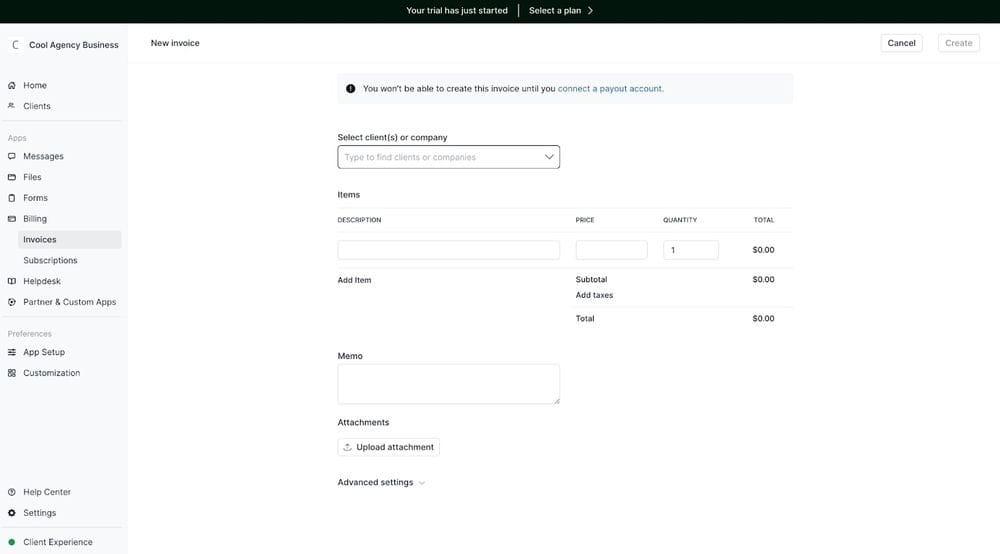
Here’s also where you integrate the external tools you identified in Step 2. Connect your CRM so client information syncs automatically.
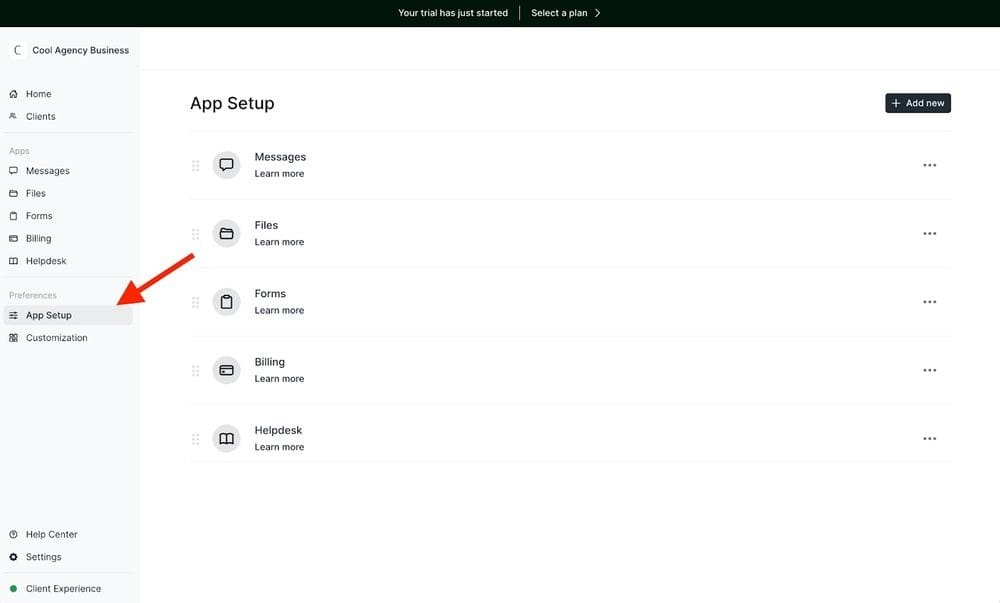
You can also link your project management software so status updates flow into the portal. Set up any automation that reduces manual work, like notifying clients when you upload a new file.
Step 5: Create content and organize information
Build out your knowledge base with articles that answer the questions you're already answering ten times a week. If clients keep asking how to download files, write a quick guide. If payment options confuse people, document that process once and point everyone to it. These resources cut down on support requests while helping clients figure things out themselves.
I also recommend creating templates for anything you do repeatedly. If you're sending the same contract type to every client, set up a template now. Same with invoices that follow your standard format. Configure it once instead of rebuilding from scratch every single time.
Here's the thing, though: organize everything from your client's perspective, not yours. What makes perfect sense to you might completely confuse someone who's never touched a portal before. I always recommend having a colleague or friend click through it and tell you where they get lost. You'll be surprised by what trips people up.
Step 6: Test, invite clients, and launch
Before inviting clients, test everything yourself. Upload a file, send a test invoice, try the messaging system, and check mobile responsiveness. Click through every feature and make sure it works as expected. It's better to catch issues now than after clients are using it.
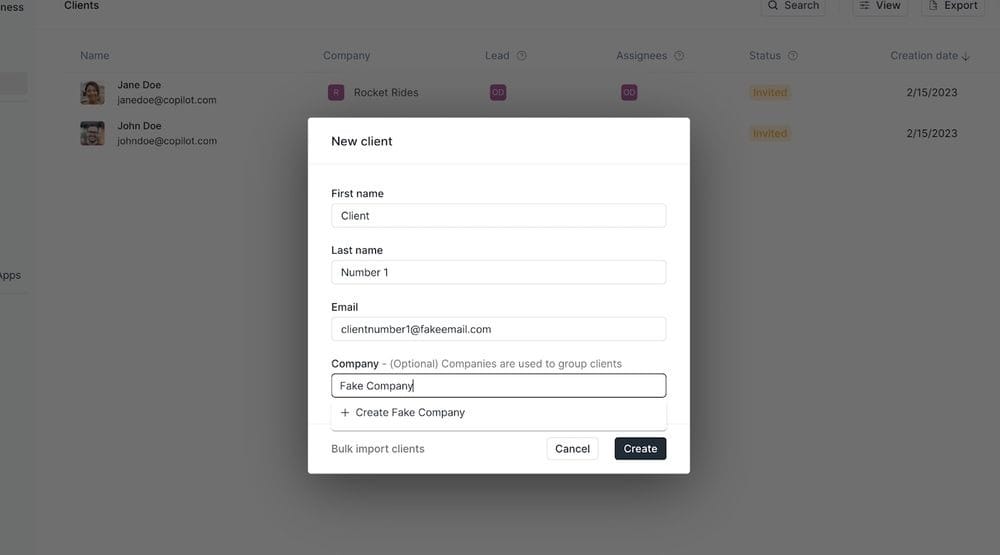
Invite a small group of clients first rather than everyone at once. This lets you work out any kinks and gather feedback before your full launch. Pay attention to what confuses people and what questions they ask. Use that feedback to improve documentation or adjust your setup.
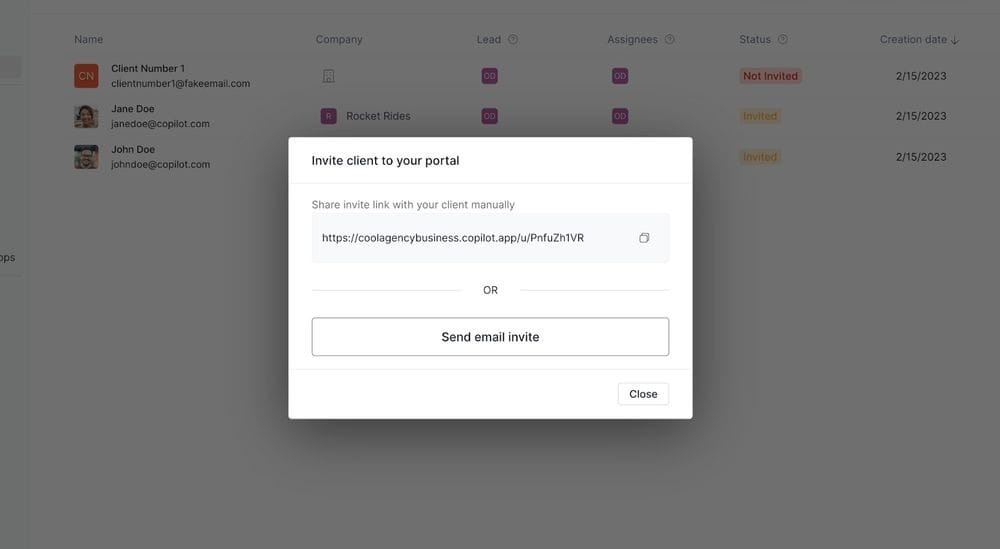
Once you're confident everything works, invite the rest of your clients. Send a clear email explaining what the portal is, why you created it, and how to log in.
Here’s another tip: Include instructions for their first login and where to find help if they get stuck. Monitor usage in the first few weeks and reach out to clients who aren't engaging to see if they need help.
Key features to include in a customer portal
Your customer portal should cover the basics. Look for secure authentication, file management, and communication tools. Features like white-labeling, integrations, and analytics add extra value as you scale. Here are the key features to look for in a portal:
- Secure login and user management: Multi-factor authentication, session timeouts, and role-based permissions are critical for protecting client data. Prioritize platforms that offer these security features, as not all entry-level portals include them by default.
- File storage and sharing: Organized folders, version control, and download permissions make it easy for clients to find the right files.
- Communication tools: Built-in messaging keeps conversations tied to projects, files, or invoices instead of scattered emails. In my experience, this is one of the most important features to look for.
- Mobile responsiveness: A responsive design ensures the portal works well on phones and tablets with readable text and tap-friendly buttons.
- Billing and invoicing: Integrated billing lets you send invoices, accept payments, and track payment history in one place.
- Project or task tracking: Status indicators, such as in progress, under review, or complete, give clients visibility. I recommend looking for a platform that offers task management features to make things easier to track.
- White-label branding: Custom domains, logos, and brand colors make the portal feel like part of your business.
- Integration capabilities: Native integrations or automation tools sync your portal with CRM, accounting, and project management systems.
- Self-service knowledge base: FAQs and guides help clients find answers on their own and reduce support requests. In my experience, a well-maintained knowledge base reduces repeat questions significantly.
- Real-time data and updates: File uploads, status changes, and invoice updates appear right away to avoid confusion.
- Analytics and reporting: Usage insights show how clients interact with the portal and where improvements are needed.
- Customization and flexibility: Custom fields and layouts let the portal match your workflows and client needs.
- Scalability: The platform should support more clients and users as your business grows without forcing a migration.
Customer portal best practices
Setting up a customer portal is one thing, but running it effectively is another. Here are some best practices for a successful portal:
Keep your content current
Outdated info in your portal can cause more issues than having no portal at all. When clients see old project statuses or expired documents, they lose trust in the portal. Then, they start emailing you again.
I recommend scheduling a weekly review. Update project statuses, remove outdated files, and refresh any time-sensitive information. This keeps the portal reliable.
Make onboarding simple
Clients need to understand your portal before they actually use it. Create a quick start guide that walks them through logging in, finding files, and completing common tasks. I've found that a short welcome video (even just 2-3 minutes) can help improve adoption. Many clients like seeing exactly what to do rather than reading instructions.
Gather client feedback regularly
Your clients will tell you what's working and what's not if you ask them. Send a brief survey every quarter asking about their portal experience. Pay attention to common complaints or confusion points. The feedback often reveals simple fixes that make a big difference in how clients perceive your service.
Maintain strong security practices
Security isn't a one-time setup. Review user permissions quarterly to remove access for people who no longer need it. Enable multi-factor authentication if you haven't already. Update your team on security protocols regularly. I've seen businesses get lax about security after the initial setup, creating unnecessary risk.
Train your team thoroughly
Your team needs to know the portal as well as your clients do. If a client calls with a question and your team member can't help, that's an issue. They need to understand how the portal works. Run regular training sessions for new features and create internal documentation that your team can reference quickly.
Promote portal adoption actively
Don't assume clients will start using the portal just because it exists. When you send files, remind clients they can also find them in the portal. When clients ask for project updates, direct them to check the portal first. The more you reference it in your regular communication, the more it becomes part of their routine.
Organize information logically
Organize information based on how clients think, not just how your business works. Group related documents together. Use clear folder names that make sense to someone outside your company. Ask someone who doesn’t know your business to find a specific document. Time how long it takes them. This will test how well you've organized files.
5 best tools for customer portals in 2026
Some customer portal platforms focus on branded client experiences. Others focus on support ticketing or workflow automation. These five options cover different business types and priorities:
- Assembly: Assembly is a no-code client portal platform for service businesses like accounting firms, agencies, and consultants. You can create branded portals with white-labeling and custom domains. It also offers integrated billing, messaging, contract management, and secure file sharing.
- HubSpot Service Hub: HubSpot Service Hub is a customer service platform that includes portal functionality for support ticketing and automation. It works well if you're looking for a customer-facing knowledge base or helpdesk, rather than full project collaboration. It's most effective for businesses already using HubSpot's CRM and marketing tools.
- Zendesk: Zendesk is a customer support platform with portal features designed for ticket management and self-service. It's a good choice for handling high volumes of customer support inquiries with AI-powered capabilities, rather than managing client projects or shared files.
- Clinked: Clinked is a client portal with built-in project management features like document editing and task boards. You can use it for both client-facing portals and internal team collaboration.
- Moxo: Moxo is a client interaction platform focused on workflow automation and secure collaboration. It's particularly well-suited for industries that require complex onboarding, document collection, and multi-stakeholder approvals, such as financial services or legal firms.
Tip: If you’d like to learn more about these tools, we also have a customer support portal guide.
Ready to create a branded client experience? Try Assembly
Learning how to create a customer portal doesn't require technical skills when you use the right no-code platform.
Assembly is a no-code customer portal platform built for professional service businesses. You can create branded portals where clients access files, invoices, projects, and communication without switching between multiple tools.
Here’s what you can do with Assembly:
- Track client details and activity: Manage client records, communication history, and relationship data in a structured CRM that keeps everything organized in one place.
- Give clients a branded portal: Clients log into a space that reflects your brand to access contracts, invoices, files, and project updates without email back-and-forth.
- Keep tasks, messages, and files together: Client communication, shared files, and project tasks stay connected to each client record instead of being scattered across separate tools.
- Prep faster for meetings: The AI Assistant summarizes recent client activity and communication, helping you walk into calls with a clear picture of what’s been discussed and what’s outstanding.
- Stay ahead of clients: Highlight patterns that may show churn risk or upsell potential, making outreach more timely and relevant.
- Cut down on admin: Automate repetitive jobs like reminders, status updates, or follow-up drafts that used to take hours. The Assistant handles the busywork so your team can focus on clients.
Ready to simplify how your firm manages client work? Start your free Assembly trial today.
Frequently asked questions
What's the difference between a customer portal and a client portal?
The difference is that customer portals typically serve consumers for support tickets and account management, while client portals serve business-to-business relationships focused on projects and professional services. Both provide secure access to information, files, and communication tools.
Can clients access the portal from mobile devices?
Yes, many modern customer portals work on mobile devices, some with an app and others through responsive web design. You access the portal through your phone's browser, and the interface adapts to smaller screens with touch-friendly buttons and readable text. Some platforms also offer dedicated mobile apps.
What security features should a customer portal have?
A customer portal should have multi-factor authentication, automatic session timeouts, and role-based permissions at a minimum. Multi-factor authentication requires a second verification method beyond passwords, session timeouts log users out after inactivity, and role-based permissions control what each user can access.