
10 Best Box alternatives for teams and businesses in 2026
Not every team needs enterprise content management. I tested dozens of Box.com alternatives to find the 10 best across storage, security, and budget in 2026.


Google Drive, Egnyte, and SharePoint are among the strongest Box alternatives for teams with different storage and security needs. I tested and researched dozens of tools to find the 10 best Box.com alternatives in 2026, covering features, pricing, and who each one suits best.
10 best Box alternatives: At a glance
| 💻 Tool | 🎯 Best for | 🔥 Starting price (billed annually) |
|---|---|---|
| Google Drive | Google Workspace teams needing simple, free storage | Free (15 GB) |
| OneDrive | Microsoft 365 users needing seamless file sync | $19.99/year (100 GB) |
| SharePoint | Enterprises needing document management + intranet | $5.40/user/month (1 TB per user) |
| Dropbox | Teams needing reliable cross-platform file syncing | $9.99/month (2 TB) |
| Egnyte | Industries needing hybrid cloud + compliance | $22/user/month (10 TB shared) |
| Tresorit | Teams needing zero-knowledge encrypted storage | $4.75/month (50 GB) |
| Sync.com | Small businesses needing strong privacy at low cost | $3.50/month (150 GB) |
| Zoho WorkDrive | Zoho users needing collaborative team storage | $2.50/user/month (1 TB per team, min 3 users) |
| pCloud | Users wanting lifetime or non-recurring storage | $49.99/year (500 GB) |
| ShareFile | Professional services needing secure sharing + e-sign | $16.50/user/month (1 TB per user) |
*Pricing correct as of June 2026. Verify with vendor.
Why look for a Box alternative?
Box is built for enterprise-grade content management, and it shows in both the feature set and the price tag. For teams that don't need that level of complexity, the costs and limitations tend to outweigh the benefits pretty quickly.
Here are some reasons teams look elsewhere:
- Pricing climbs fast: Box’s per-user, enterprise-style pricing can feel heavy for smaller teams and startups, since you often pay for advanced governance features you may not fully use.
- Syncing large files can be slow: Many users report that Box Drive works fine for everyday documents but can bog down with big media or design files, which can slow down file-heavy workflows.
- The interface has a learning curve: Because Box is designed around granular permissions and governance, new users often find the admin and sharing controls more complex than expected, which can slow onboarding.
- Storage limits on lower tiers: The free and starter plans have relatively low storage caps compared with higher Box tiers and some competitors, so teams with lots of large files often hit those limits quickly.
TL;DR: Which Box alternative should you choose?
The right Box alternative depends on your team size, storage needs, and how much security and compliance matter to your workflow.
Choose:
- Google Drive if your team already uses Gmail or Google Workspace and wants collaborative file storage with a generous free tier. It’s not usually the first choice for heavily regulated industries that need deep content governance.
- OneDrive if your organization runs on Microsoft 365 and wants file sync built into your existing subscription. It works best in Windows- and Microsoft-first environments and feels less compelling if your stack is mostly non-Microsoft tools.
- SharePoint if you need enterprise document management with intranet features and workflow automation. It has a steep setup curve and usually requires IT or a power user to configure and maintain.
- Dropbox if cross-platform file sync and broad app integrations are your priority. It's one of the more reliable options for sync, but it's less focused on heavy-duty compliance than Box or Egnyte.
- Egnyte if your industry handles large files and needs hybrid cloud storage with compliance support. It’s built for mid-market and enterprise teams, so smaller teams may find the pricing and feature depth more than they need.
Stick with Box if enterprise-grade compliance, deep Salesforce or Microsoft 365 integration, and centralized content governance are non-negotiable for your organization.
1. Google Drive: Best for Google Workspace teams needing free file storage
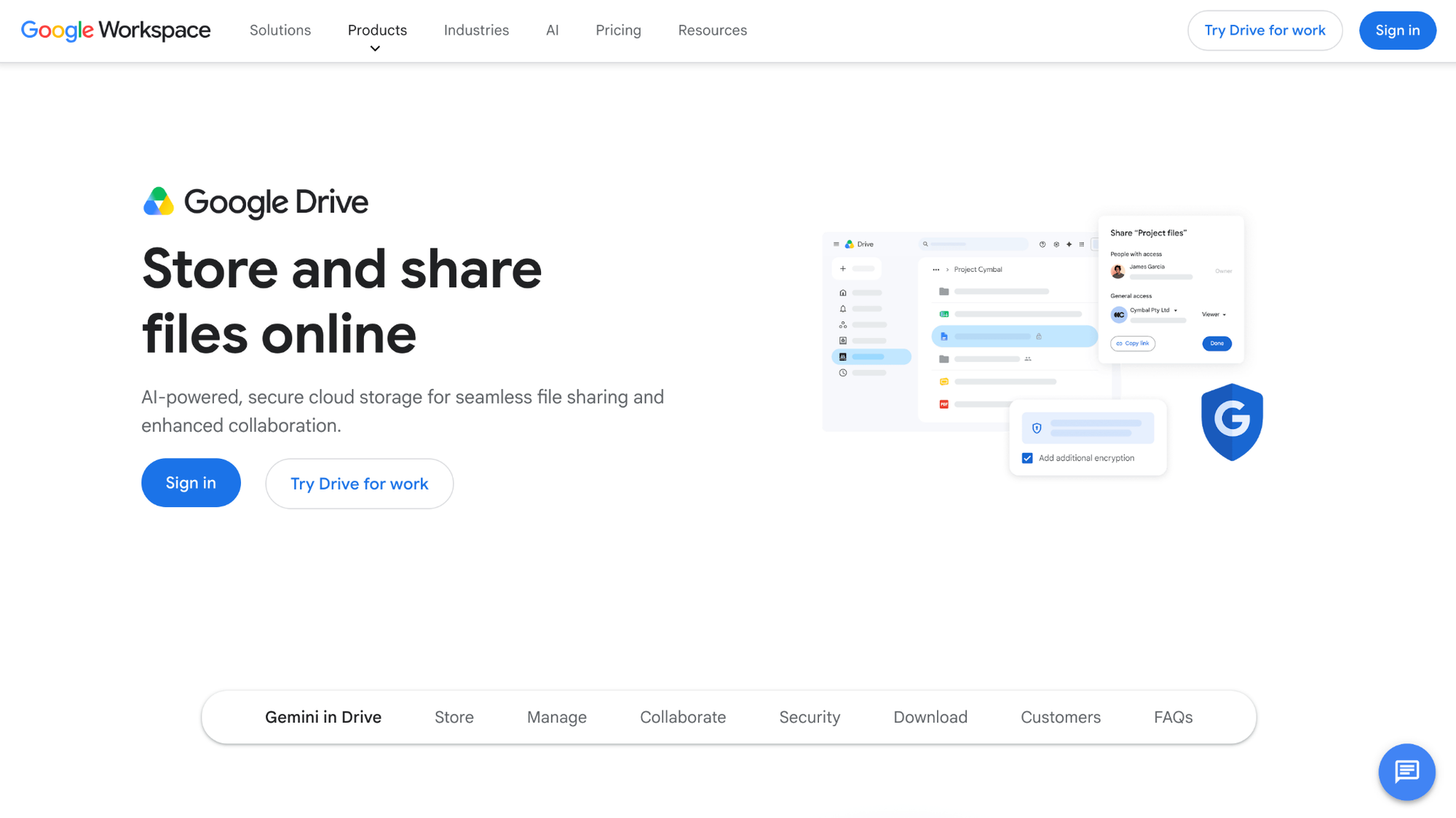
Google Drive is Google's cloud storage and file collaboration platform, built into the Google Workspace ecosystem alongside Docs, Sheets, and Slides. Teams can store, share, and co-edit files in real time with straightforward permission controls. Storage is shared across Gmail, Drive, and Google Photos though, so the free 15 GB tends to fill up faster than many users might expect.
Key features
- Real-time document editing: Allow multiple users to edit Docs, Sheets, and Slides simultaneously within the browser.
- Granular sharing controls: Set view, comment, or edit permissions on individual files and folders for internal or external collaborators.
- Google Workspace integration: Connect files directly to Gmail, Google Meet, and Google Calendar for in-context access across the suite.
Pros
- ✅ The free storage tier can be enough for many individual and light business use cases without requiring a paid plan
- ✅ Real-time collaboration across Docs, Sheets, and Slides cuts down on emailing file versions back and forth
- ✅ Deep integration with Gmail and Google Calendar makes it straightforward to attach and access files without switching apps
Cons
- ❌ Storage is shared across Gmail, Google Photos, and Drive, so the free tier can fill up quickly for active users
- ❌ Offline access and desktop syncing require some setup, and performance can be inconsistent on slower connections
Best for
- Teams already using Gmail or Google Workspace for day-to-day communication
- Small teams and individuals who need collaborative document editing without a subscription
- Organizations that prioritize real-time co-editing over advanced content governance or specialized compliance tooling
Pricing
Google Drive is free for up to 15 GB of cloud storage.
2. OneDrive: Best for Microsoft 365 organizations needing built-in file sync
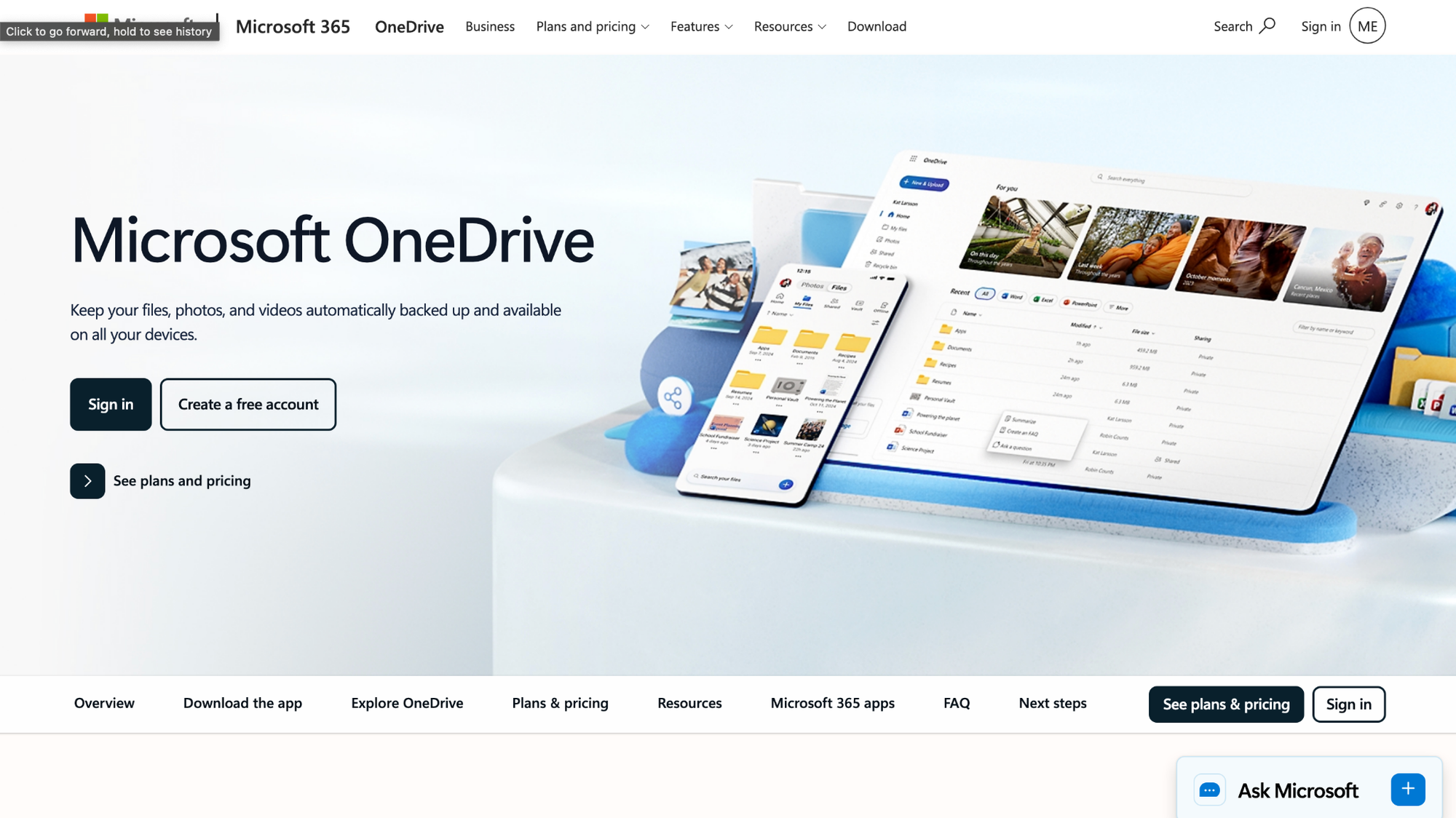
OneDrive is Microsoft's cloud storage platform, built directly into the Microsoft 365 ecosystem alongside Word, Excel, and Teams. It lets teams sync, store, and share files across devices with permissions that connect naturally to existing Microsoft 365 user accounts. It works best in Windows- and Microsoft-first environments, and teams that rely mainly on non-Microsoft tools may find the experience less seamless.
Key features
- Automatic device sync: Sync files across Windows, Mac, and mobile devices so the latest version is available on all your devices.
- Microsoft 365 integration: Access and co-edit Word, Excel, and PowerPoint files directly from storage without downloading them first.
- Granular access controls: Set folder and file-level permissions tied to existing Microsoft 365 user accounts and security groups.
Pros
- ✅ OneDrive comes bundled with most Microsoft 365 plans, so many organizations don’t need a separate storage tool
- ✅ File versioning lets users restore previous versions of documents without needing a separate backup tool
- ✅ Integration with Microsoft Teams makes it straightforward to share and access files within ongoing team conversations
Cons
- ❌ Sync conflicts can occur when multiple users edit the same file offline, requiring manual resolution
- ❌ The experience is noticeably stronger on Windows than on Mac or in non-Microsoft environments
Best for
- Organizations already subscribed to Microsoft 365 who want file storage included in their existing plan
- Windows-first teams that need reliable file sync across devices without additional software
- Businesses that collaborate heavily in Word, Excel, and PowerPoint and want files accessible from within those apps
Pricing
OneDrive starts at $19.99 per year for 100 GB of cloud storage.
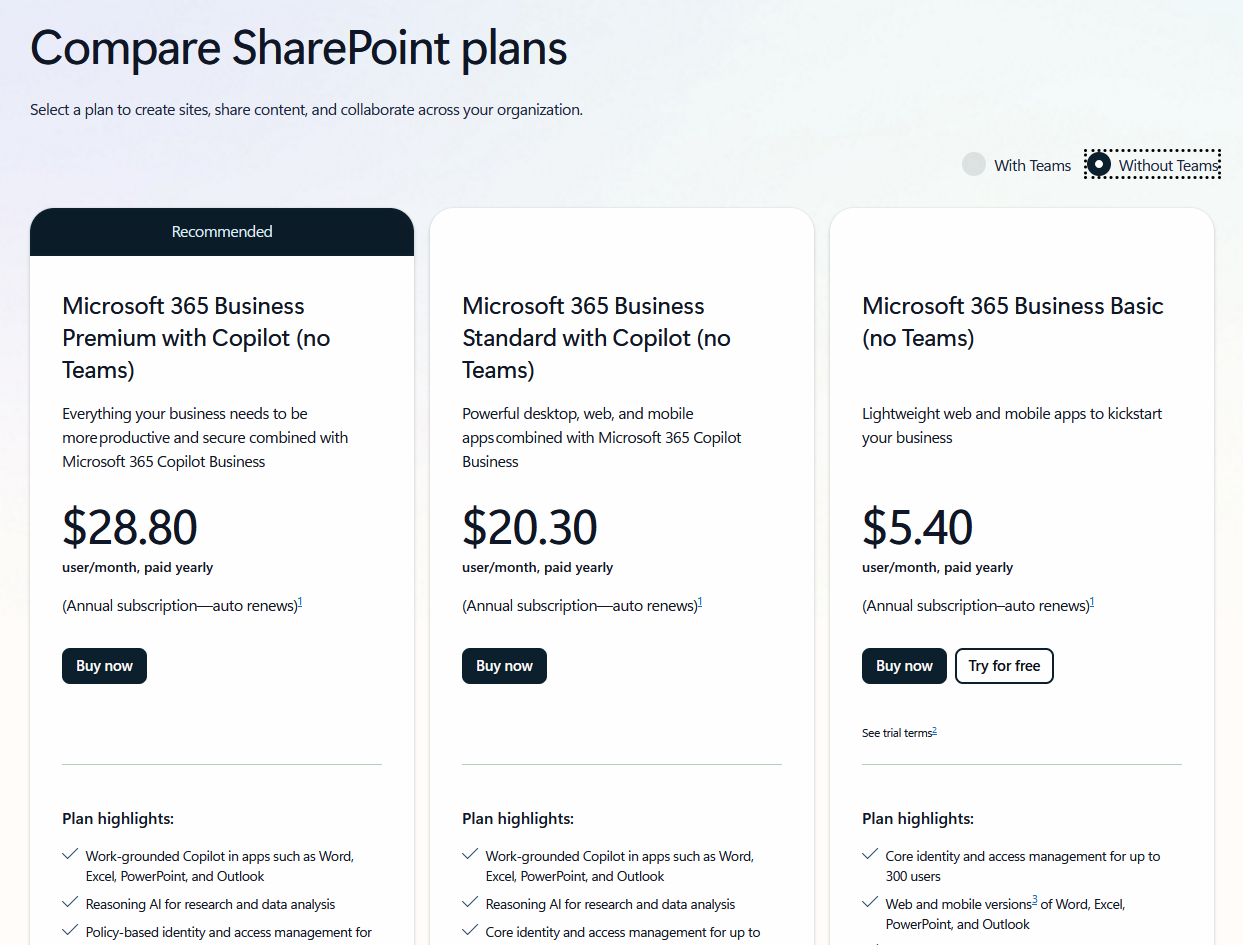
3. SharePoint: Best for enterprises needing document management with intranet features
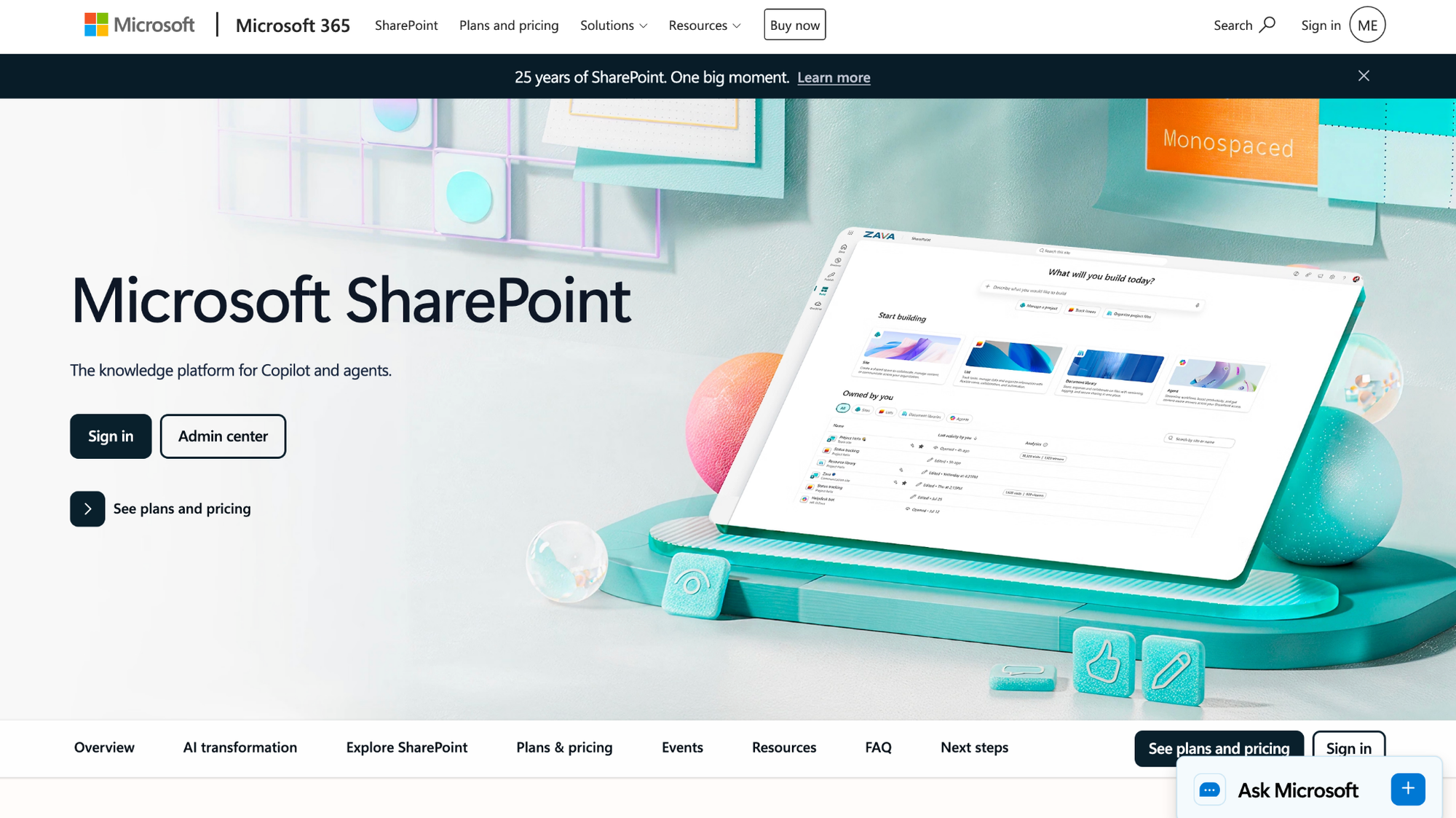
SharePoint is Microsoft's enterprise document management and intranet platform for organizations that need structured document libraries, version control, and internal knowledge sharing. Teams can organize files with metadata tagging, set granular permissions, and build internal pages alongside their document workflows. Setup often benefits from IT involvement and can take time to configure properly.
Key features
- Document libraries with metadata: Organize files using custom metadata tags and columns rather than relying on folder structures alone.
- Intranet page building: Build internal company pages, news feeds, and team sites that sit alongside document storage in the same platform.
- Workflow automation: Connect document processes like approvals and notifications to Microsoft Power Automate for multi-step automation.
Pros
- ✅ Deep integration with Microsoft 365 means files connect directly to Teams, Outlook, and Office apps with minimal extra configuration
- ✅ Metadata-based organization gives large teams more control over how documents are categorized and retrieved at scale
- ✅ Version history and document check-in features reduce the risk of overwriting files in high-volume collaborative environments
Cons
- ❌ Initial setup and configuration often require IT expertise
- ❌ The interface can be difficult to navigate for everyday users who aren’t familiar with the broader Microsoft 365 environment
Best for
- Large organizations that need structured document management with metadata, version control, and access permissions at scale
- Microsoft 365 shops that want file storage and intranet features without adding a separate platform
- IT-supported teams with the resources to configure and maintain a more complex document management environment
Pricing
SharePoint starts at $5.40 per user per month for 1 TB of cloud storage per user.
4. Dropbox: Best for teams needing reliable cross-platform file sync
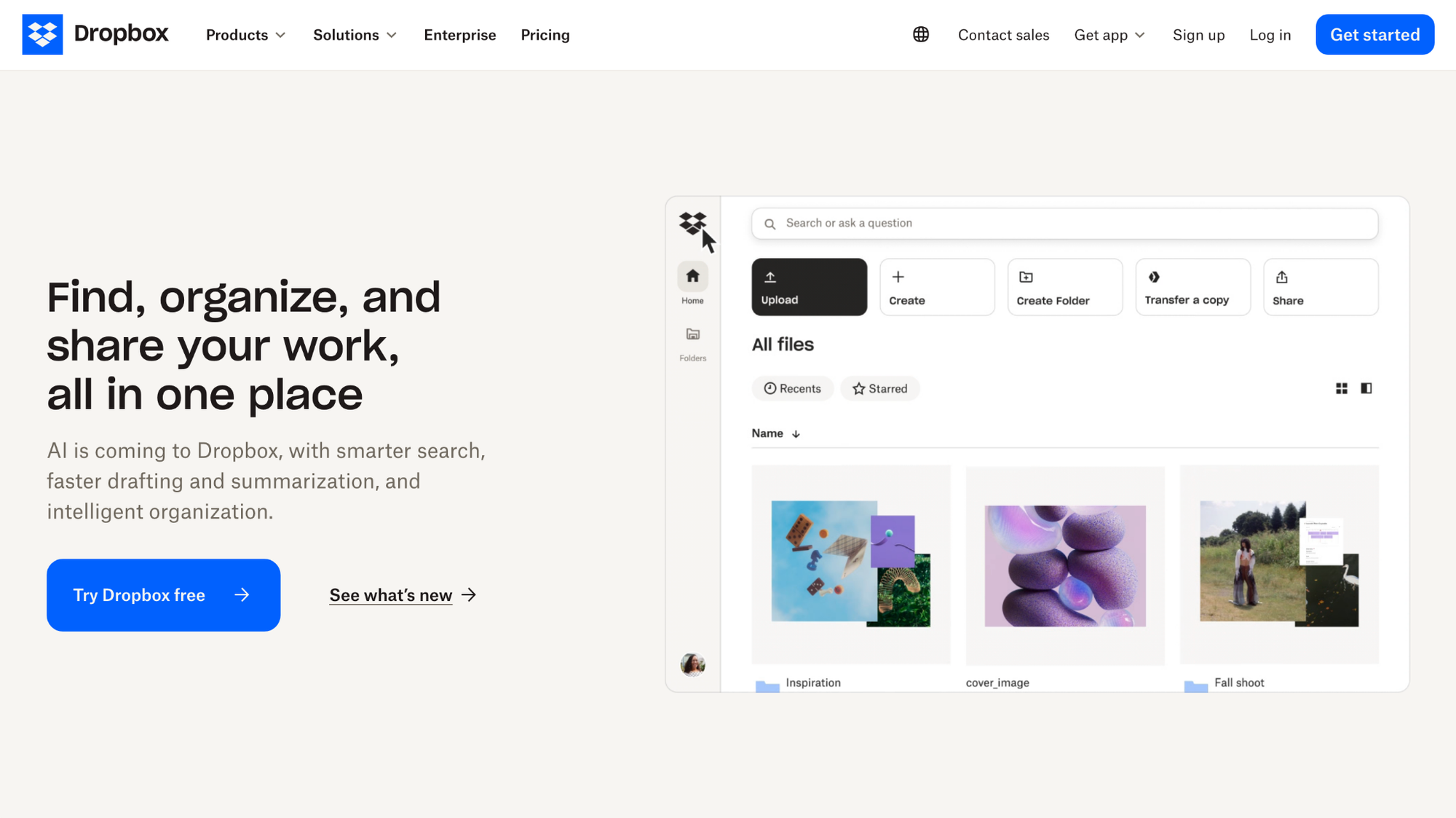
Dropbox is a cloud storage and file sync platform built around keeping files consistent across devices, operating systems, and apps. Teams can store, share, and sync files across Windows, Mac, iOS, and Android with a desktop client that runs in the background. Dropbox is less focused on deep enterprise compliance and governance, so heavily regulated teams may prefer more specialized tools.
Key features
- Cross-platform sync: Keep files updated across Windows, Mac, and mobile devices through a sync client that runs in the background with minimal manual input.
- Shared folder collaboration: Give team members access to shared folders with view or edit permissions, with changes reflected across all connected devices.
- Third-party app integrations: Connect Dropbox to tools including Slack, Zoom, and Google Workspace to access and share files from within those platforms.
Pros
- ✅ The desktop sync client is widely regarded as reliable, with consistent performance across Windows and Mac
- ✅ 2 TB of storage on the entry-level paid plan can be enough for many small to mid-sized teams without hitting storage limits quickly
- ✅ Broad third-party integrations make it straightforward to connect Dropbox to tools your team already uses
Cons
- ❌ Native collaboration features like in-browser document co-editing are more limited compared with tools like Google Drive or Microsoft 365
- ❌ Teams in regulated industries may find the compliance and security tooling less extensive than dedicated enterprise platforms
Best for
- Teams that work across multiple operating systems and need consistent, reliable file sync
- Small to mid-sized businesses that want straightforward cloud storage without complex admin configuration
- Organizations that rely on third-party tools like Slack or Zoom and want file access built into those workflows
Pricing
Dropbox starts at $9.99 per month for 2 TB of cloud storage.
5. Egnyte: Best for industries needing hybrid cloud storage with compliance support
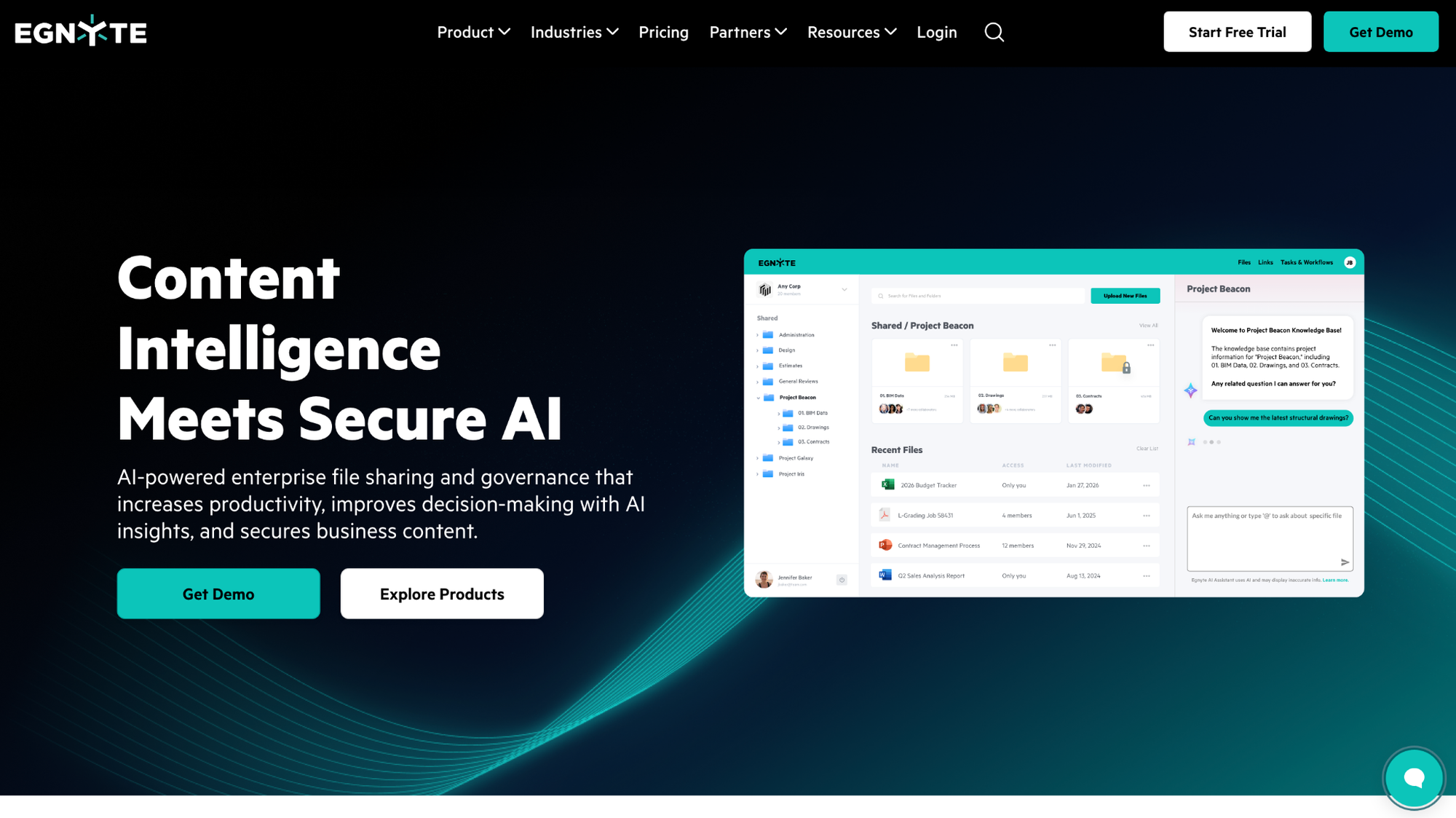
Egnyte is a hybrid cloud storage platform built for industries that need to manage large files across cloud and on-premises environments, with compliance tools for sectors such as construction, life sciences, and financial services. Teams can store, share, and govern files with granular access controls and audit trails. Setup and ongoing administration can be more time-intensive than lighter alternatives.
Key features
- Hybrid storage management: Connect cloud and on-premises storage in a single interface so teams can manage files across both environments from one place.
- Compliance and governance tools: Apply access controls, audit trails, and data retention policies to help support regulatory requirements in industries such as healthcare and finance.
- Large file handling: Upload and share large files including CAD drawings and high-resolution media, with fewer size and performance constraints than many general-purpose storage platforms.
Pros
- ✅ Hybrid cloud and on-premises storage gives IT teams flexibility over where sensitive files are stored and who can access them
- ✅ Audit trails and compliance tooling make it a practical option for industries with strong data governance and regulatory requirements
- ✅ Granular permission controls let administrators manage access at the folder, file, and user level across large teams
Cons
- ❌ Egnyte is built primarily for mid-market and enterprise teams, so smaller businesses may find the feature set more than they need for straightforward file storage and sharing
- ❌ The platform's complexity can make initial configuration and ongoing administration more time-intensive than lighter alternatives
Best for
- Architecture, engineering, and construction teams that need to share and sync large project files across cloud and on-premises environments
- Organizations in regulated industries like healthcare and financial services that need compliance tooling built into their storage platform
- Mid-market and enterprise teams with IT resources to configure and manage a more complex storage environment
Pricing
Egnyte starts at $22 per user per month for 10 TB of cloud storage.
Special mentions
These tools didn't make the top 5, but each one can be a strong fit depending on your security requirements, budget, and how your team manages files day to day.
Here are 5 more Box alternatives worth considering:
- Tresorit: A security-first, end-to-end encrypted cloud storage platform built for teams handling sensitive or regulated data. It’s a good fit for industries like legal and healthcare where data privacy is non-negotiable. Its collaboration features are more limited than general-purpose storage tools, so it often works better as a secure document vault than as your main all-in-one workspace.
- Sync.com: A privacy-focused cloud storage tool with end-to-end encryption and Canadian data centers. It's a solid pick for small businesses that want strong security without enterprise-level pricing. The interface is functional but fairly basic, and the third-party integration options are limited compared to larger platforms.
- Zoho WorkDrive: A collaborative cloud storage platform built for teams already in the Zoho ecosystem. I found the setup straightforward, and the pricing is competitive for small to mid-sized teams. It's less compelling if your team doesn't use other Zoho products, since a lot of its value comes from those native integrations.
- pCloud: A cloud storage platform that offers one-time “lifetime” payment options as an alternative to recurring subscriptions. It’s a practical option for individuals and small teams that want to avoid ongoing fees. Its business features are more limited than those of heavy enterprise-focused tools, so it fits lighter use cases better than complex, highly regulated team workflows.
- ShareFile: A secure file sharing and client collaboration platform that’s popular with professional services firms. It’s a strong fit for accounting, legal, and financial services teams that need e-signatures and compliance features alongside file storage. Plans are geared toward multi-user teams, which can make it harder to justify for very small teams.
How to evaluate Box alternatives
Choosing the right Box alternative depends on what you actually use Box for today and where it's falling short. Here are a few things worth thinking through before you decide.
Here are a few things to consider:
- Storage needs and file volume: A small team sharing contracts and PDFs has very different requirements than a construction firm syncing gigabytes of CAD files daily. Before you commit, look at how each tool handles storage limits, file size caps, and whether storage scales per user or as a pooled account.
- Security and compliance requirements: Some industries need zero-knowledge encryption, HIPAA compliance, or data residency in specific regions. Others just need password-protected sharing and basic access controls. Decide how much security and compliance depth your team needs, since tools built for regulated industries tend to come with added complexity and cost.
- Internal collaboration vs. external sharing: Some tools on this list are built primarily for internal team collaboration, while others are designed for sharing files with clients or external partners. Think about how much of your file sharing crosses outside your organization and how much stays in-house.
- Ecosystem fit: Most tools on this list integrate more naturally with either Google Workspace or Microsoft 365. If your team is already deep in one ecosystem, a tool that plugs in natively will save significant setup time compared to one that requires workarounds or third-party connectors.
- Team size and pricing structure: Some tools price per user, others offer flat-rate team plans, and a few offer one-time “lifetime” style options instead of ongoing subscriptions. A pricing model that feels fine for a 3-person team can look very different at 20 people, so map out the cost at your current size and at where you expect to be in a year.
File storage is only part of the picture
Most teams don't start looking for a Box alternative because file storage alone is broken. The shift usually happens when sharing files with clients starts to feel disconnected from the rest of the relationship, or when teams realize they're managing contracts, payments, and communication across too many separate tools.
The Box alternatives on this list cover the storage and security side well. If you also need a structured client-facing experience alongside file storage, Assembly is worth a closer look. Branded portals, built-in CRM, recurring automations, and consolidated payments keep your client relationships and your team's work in one place.
Start your free Assembly trial today.
Frequently asked questions
What is the best free alternative to Box?
Google Drive is one of the best free Box alternatives, especially if your team already uses Gmail or Google Workspace. It includes a free storage tier, tight integration with Google Docs, Sheets, and Slides, and supports real-time collaboration and file sharing without a paid plan.
Is Dropbox a good alternative to Box?
Yes, Dropbox is a strong Box alternative if your priority is reliable cross-platform file sync and broad app integrations. It covers most of the same core file storage and sharing features as Box. It’s not as heavily focused on deep enterprise compliance and governance as tools like Box or Egnyte, so teams in highly regulated industries may still prefer those options.
What is the most secure Box alternative?
Tresorit is one of the most security-focused Box alternatives, with an emphasis on strong encryption and a zero-knowledge-style approach where the provider doesn’t have routine access to your file contents. Sync.com follows a similar pattern with end-to-end encryption and data stored in Canadian data centers.