
Dubsado client portals: A complete guide for service firms [2026]
The Dubsado client portal consolidates client documents, invoices, and forms behind one login. Here's how to set it up, brand it, and where it has limits in 2026.

![Dubsado client portals: A complete guide for service firms [2026]](https://storage.ghost.io/c/6f/87/6f878703-0e71-4ebd-8755-324628c2c39c/content/images/size/w2000/2026/07/wmremove-transformed--2-.jpeg)
The Dubsado client portal is a built-in hub where clients can log in and find everything related to their project in one place. After going through the setup and customization process from both sides of the login screen, here's what you need to know in 2026.
What's inside the Dubsado client portal
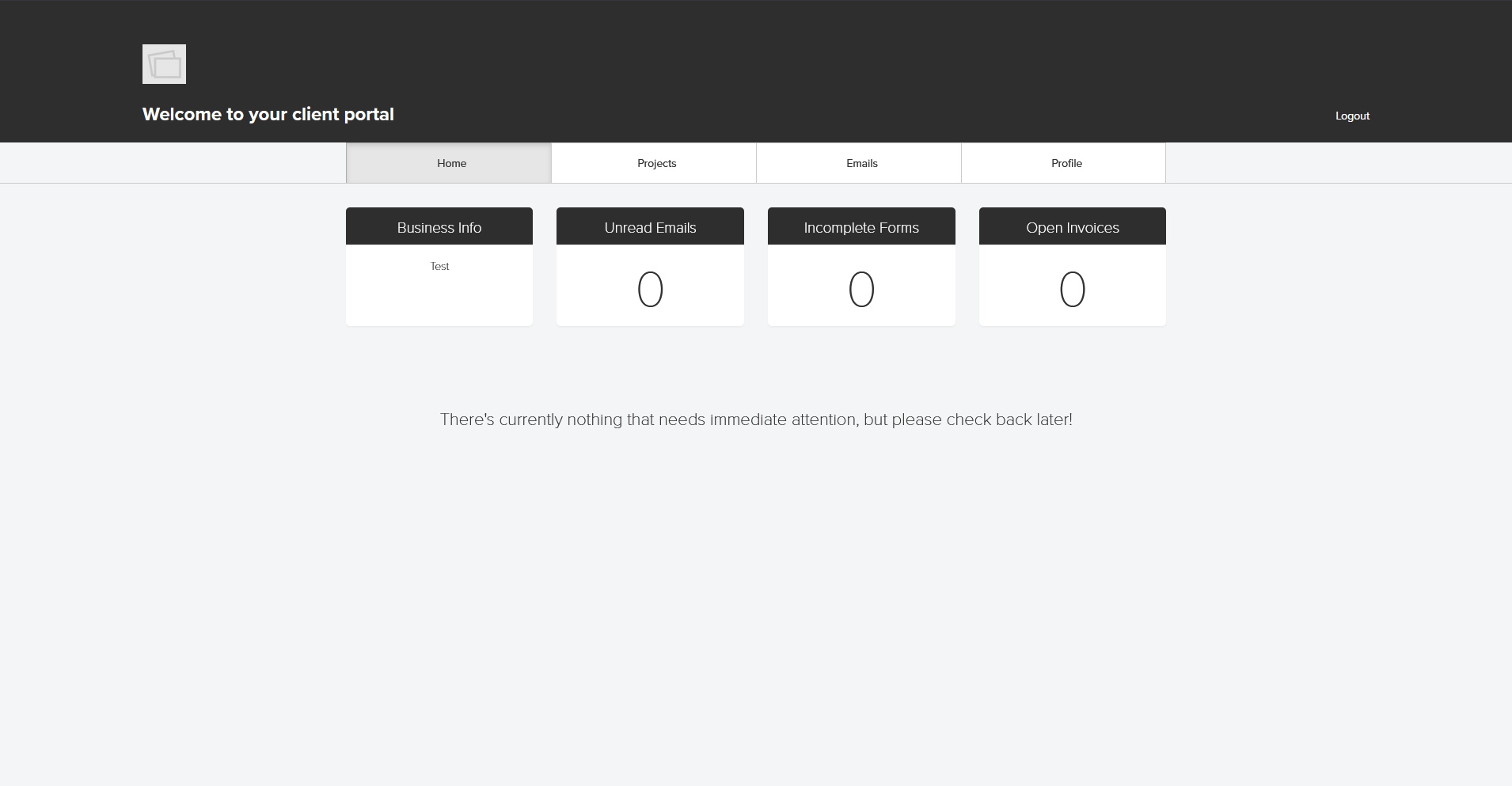
A screenshot of a default client portal with no configurations made
Your clients have access to 4 tabs inside the portal, each covering a different layer of their project with you. Here’s what to expect:
- Home: The first tab clients see after logging in. It shows a summary of anything that needs their attention, including open invoices, incomplete forms, and unread emails. Your branding appears at the top of the portal, and clients can see who they’re working with from this view.
- Projects: Clients use this tab to find the documents and invoices tied to their projects. If they've worked with you across multiple engagements, they can switch between projects using a dropdown menu. You can also rename this tab to match your own business language.
- Emails: This tab shows a log of all email threads from the project. Clients can read through past conversations here, but they can't send new messages from this view.
- Profile: Clients can view and update their own contact details here, including their name, email, phone number, and address.
I find the Projects tab tends to be where clients spend most of their time. It's where they'll go to find a contract to review, a form to complete, or an invoice to pay.
💡Note: Only you can see your internal notes, to-do items, and call logs. None of that information appears in the client view.
How to set up the Dubsado client portal
The portal starts deactivated for every client by default, so you'll need to turn it on before anyone can log in. You have two options to set it up:
Option 1: Activate manually
- Go to Projects and open the client's project
- Find the Portal section in the page
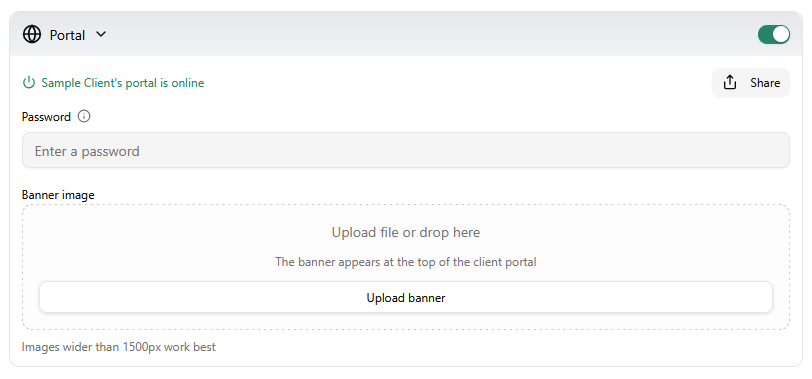
- Click the dropdown arrow and select Activate
- Choose View to preview the portal, or Send to email the client their login link
When you click Send, a pre-written email pops up with the client’s portal login link already added, and you can edit the wording before sending.
Option 2: Activate via Flows
Before you begin, keep in mind that Flows are a Premier plan feature, so if you're on Starter, you'll need to activate the portal manually for each client.
Add a portal activation step to your onboarding Flow so it triggers automatically after a client books or a contract gets signed. A Flow is essentially a sequence of automated actions you build once in Dubsado, and it runs based on whatever trigger you set. Once your setup is dialed in, this approach removes a manual task and means clients get access at exactly the right moment.
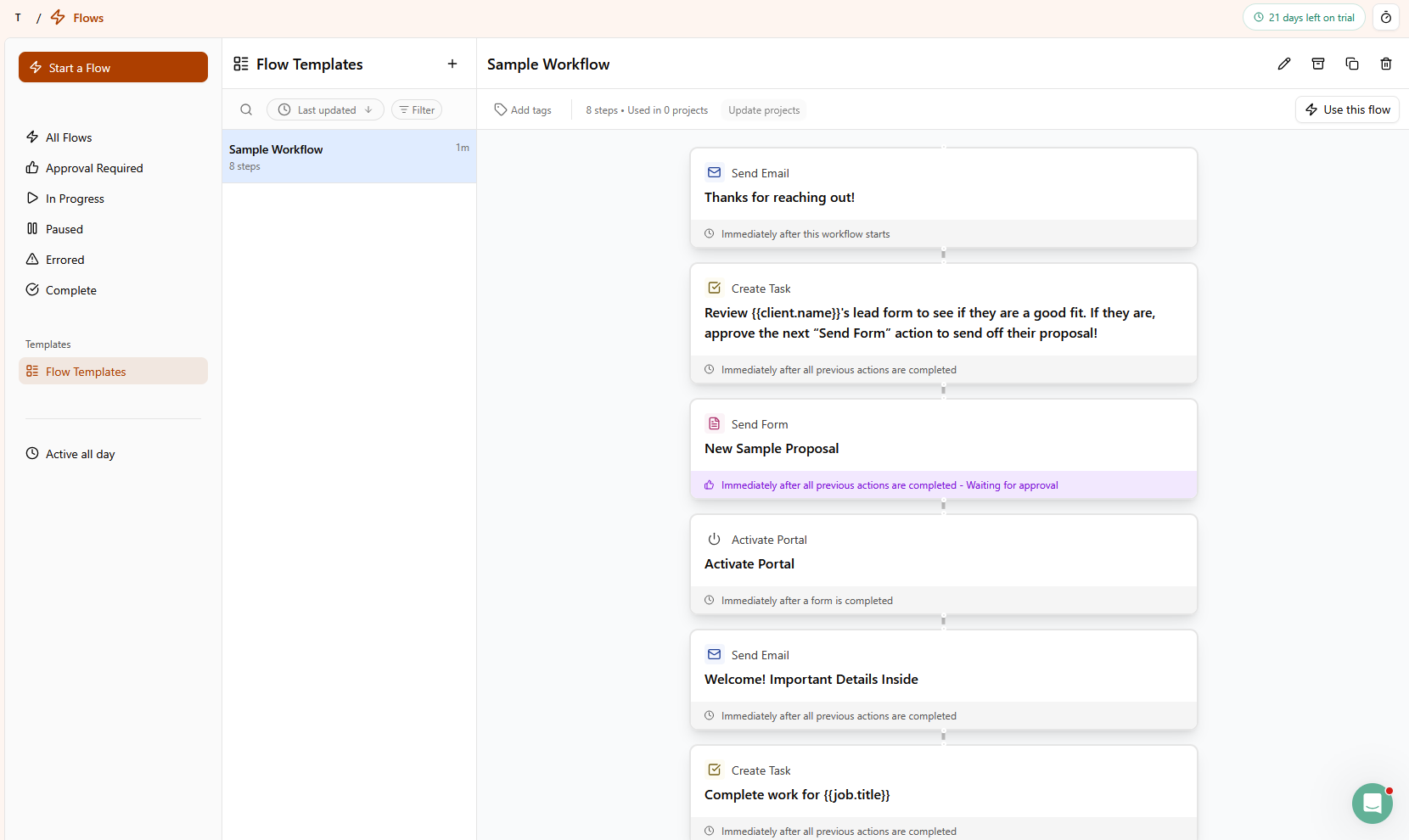
💡Note: Portal activation sits inside each individual project, not in your global settings. It's a small detail, but easy to miss the first time.
How to customize your Dubsado client portal
To access your portal settings, click on your name in the bottom left of Dubsado’s dashboard and select Settings. From the left-hand menu on the page, select Client Portal.
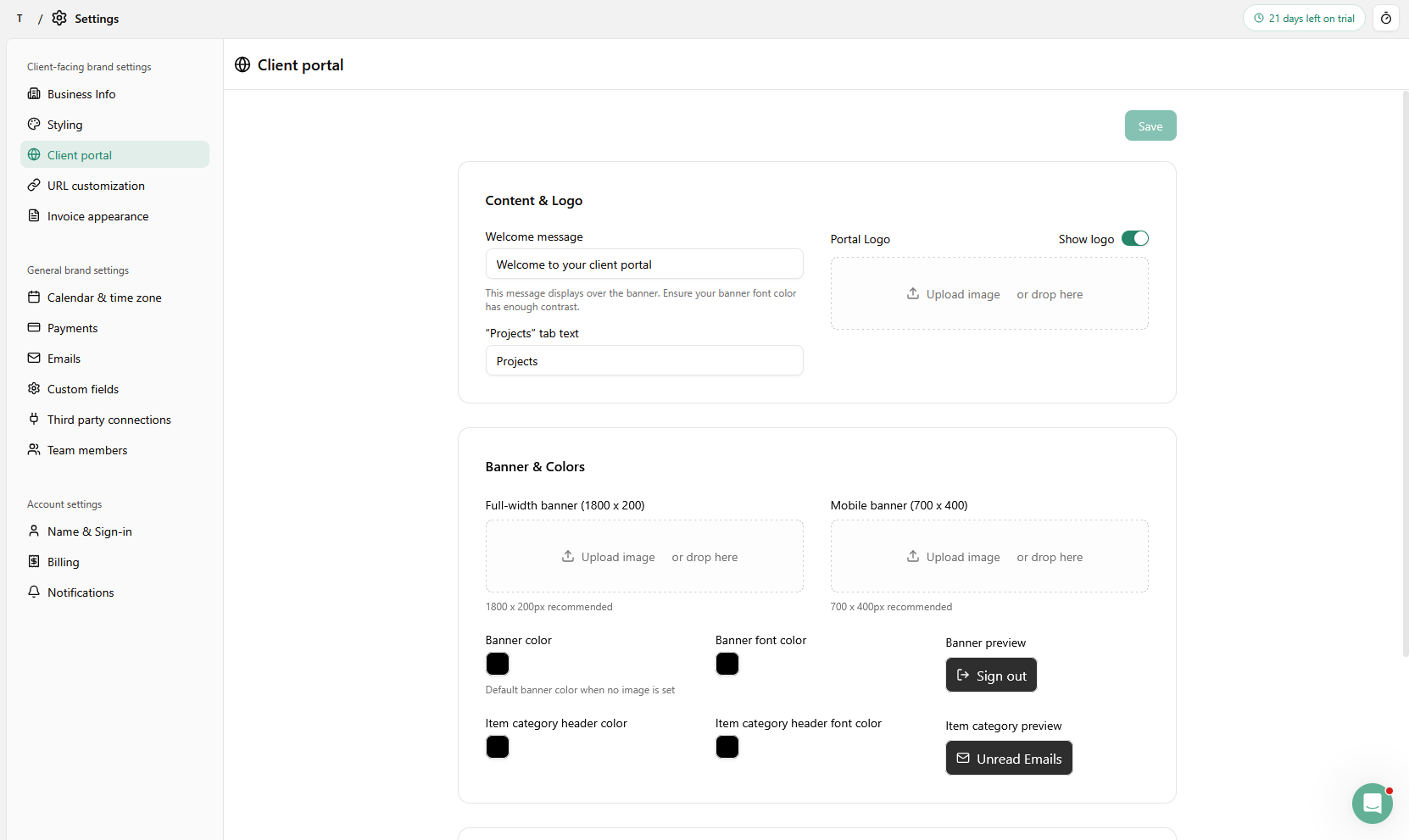
Here's what you can adjust:
- Welcome message: Write your own or turn it off entirely. If your banner design already includes text, hiding it keeps things cleaner.
- Projects tab label: Rename the Projects tab to whatever fits your business language better.
- Portal logo: Upload a version of your logo specifically for the portal. This is useful if you have a dark banner and need a lighter logo to sit on top of it.
- Desktop banner: For best results, use a wide banner (around 1800 x 200 px). I’d keep your most important design elements toward the left side, since the right edge can get cropped on some screens.
- Mobile banner: Use a taller mobile banner (around 700 x 400 px) so it displays cleanly on phones. The desktop banner doesn't resize well on mobile, so creating both is worth the extra step.
- Banner color: Set a fallback color that appears if no banner image is uploaded.
- Banner font color: This controls the color of your welcome message text and the logout button.
- Summary header color and font color: These control the summary tabs clients see on the home screen, like Business Info, Unread Emails, Incomplete Forms, and Open Invoices. I’d make sure there's enough contrast between the two so the text stays readable.
- Portal link and embed code: Found under Settings > Portal > Links and Embed Code. You can copy a direct login link to add to your website navigation or footer, or paste the embed code into a code block so the login appears directly on your site without redirecting clients to Dubsado.
- Custom domain: Connect your own domain by adding a CNAME record through your hosting provider so clients see your URL instead of Dubsado’s in their browser.
💡Tip: Before uploading your banner images, run them through an image compressor to keep the portal loading quickly.
How to share your client portal
Once the portal is activated for a client, you can share it a few ways. Go to the Portal section in the project and click Share.
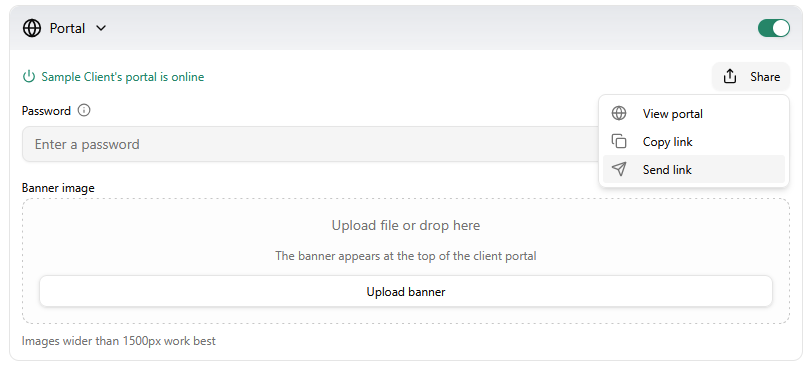
You can choose to copy the link and send it yourself through email or a message. Or, you can click on Send link.
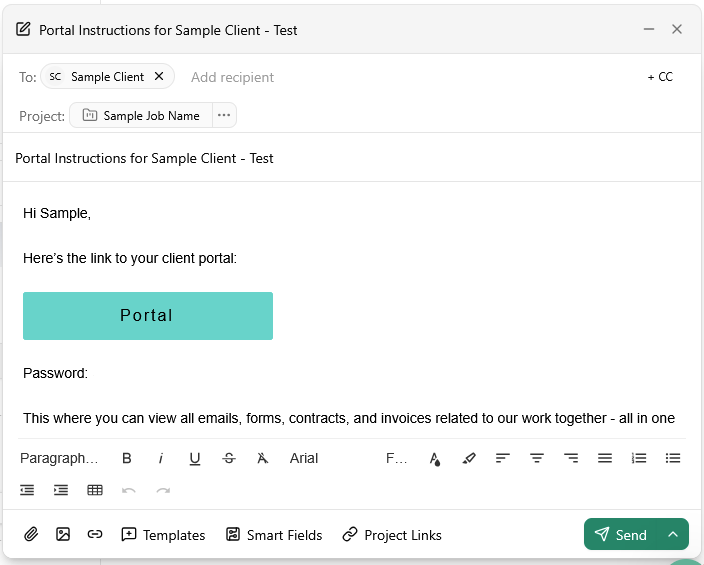
A pre-written email with the link will pop up. You can edit it before you send.
💡Tip: You can also add the portal link to your email signature, your website navigation, or a dedicated client login page so clients can find it without hunting through their inbox. I'd recommend at least one of these as a permanent touchpoint. It cuts down on clients emailing you asking where to log in.
Dubsado client portal pros
The portal covers the basics of client document access well, and a few things work in its favor. Here's what stands out:
- Included in every plan: The client portal is available on all current Dubsado plans at no extra cost. You don’t need a higher-tier upgrade to access it.
- Consolidates everything in one place: Clients can find their invoices, contracts, forms, and email history without asking you to resend anything. For businesses that send a high volume of documents, this saves a noticeable amount of back-and-forth.
- Brandable out of the box: You can upload your logo, add a custom banner, set your brand colors, and connect a custom domain so clients primarily see your brand instead of Dubsado’s.
- Automation-friendly (Premier plan): Pairing portal activation with a Flow means clients get access at the right moment without you lifting a finger every time.
Dubsado client portal cons and limitations
There are a few gaps worth knowing about before you build your entire client experience around the portal. Here's where it falls short:
- No automatic portal notifications: When you add a new document or invoice to the portal, clients aren’t notified just by that action alone. You’ll need to send or automate a separate email to let them know something is waiting.
- Clients can’t message you from the portal: The Emails tab shows past conversations, but clients can’t start or reply to a message from inside the portal, so any new replies still happen through their regular email.
- Activation is per project: You have to turn the portal on individually for each client project. It's easy to forget, especially if you're not using Flows to automate it.
- Mobile requires a separate banner: The desktop banner doesn't adapt well to smaller screens, so you'll need to create and upload a second image specifically for mobile. It's an extra design step that not everyone anticipates.
Want more from your client portal?
The Dubsado client portal works well as a document hub, but it's a feature within a CRM tool rather than a dedicated client-facing platform. If you need clients to do more than view documents and invoices, Assembly is worth a look.
Assembly is a client portal platform with built-in CRM capabilities. We built it for service businesses that want clients to log into a tailored, branded space while giving their teams more control over how client work gets managed behind the scenes.
Here's what you can do with Assembly:
- Give clients a branded portal: Clients log into a space that reflects your brand to access contracts, invoices, files, and project updates without email back-and-forth.
- Manage your clients in one place: Communication history, project status, contracts, and invoices stay connected to each client record, so nothing gets lost between onboarding and renewal.
- Dynamic client homepages: Different clients automatically see different content based on custom field tags, so each client's portal reflects their specific project, deliverables, and brand assets without manual changes.
- Keep tasks, messages, and files together: Client communication, shared files, and project tasks stay connected to each client record instead of being scattered across separate tools.
- Prep faster for meetings: Assembly AI Assistant summarizes recent client activity and communication, helping you walk into calls with a clear picture of what's been discussed and what's outstanding.
If the Dubsado client portal is starting to feel limiting, Assembly gives you a dedicated platform built specifically around the client-facing experience. Start your free Assembly trial today.
Frequently asked questions
What is a Dubsado client portal?
The Dubsado client portal is a private, login-only hub where your clients can access everything related to their project with you. It has 4 tabs covering Home, Projects, Emails, and Profile. Clients can view invoices, complete forms, see their booked appointments, and update their contact information from one place.
How do clients access the Dubsado client portal?
Clients access the Dubsado client portal through a login link you send them directly from inside their project. They log in using their email address and the login details you’ve set up for their account. You can also embed the portal or add a direct link to your website so clients can find it without searching through their inbox.
Can clients message you through the Dubsado client portal?
No, clients can't send or reply to messages from inside the Dubsado client portal. The Emails tab shows a log of past email conversations, but it's view-only. All new client replies still happen outside the portal through regular email, so you'll need a separate process if you want true two-way messaging with clients.